Category: Uncategorized

  • HUANUO Dual Monitor Stand: A Practical Guide to Creating a More Flexible Desk Setup

    HUANUO Dual Monitor Stand: A Practical Guide to Creating a More Flexible Desk Setup

    A desk with two monitors can provide a very different working experience from a single-screen setup. Instead of repeatedly switching between windows, users can keep several applications visible at the same time. A document can stay open on one screen while email, research, communication tools, spreadsheets, or creative software remain visible on the other.

    The challenge is that two monitors also require more desk space.

    Each monitor normally comes with its own stand, and those stands can take up a significant portion of the usable surface. On smaller desks, this can leave less room for a keyboard, mouse, notebook, speakers, or other everyday equipment.

    A dual monitor stand provides another way to organize the workspace. Rather than keeping two separate monitor bases on the desktop, the displays are supported by a shared mounting system. This can free up part of the desk while also providing options for positioning and adjusting the screens.

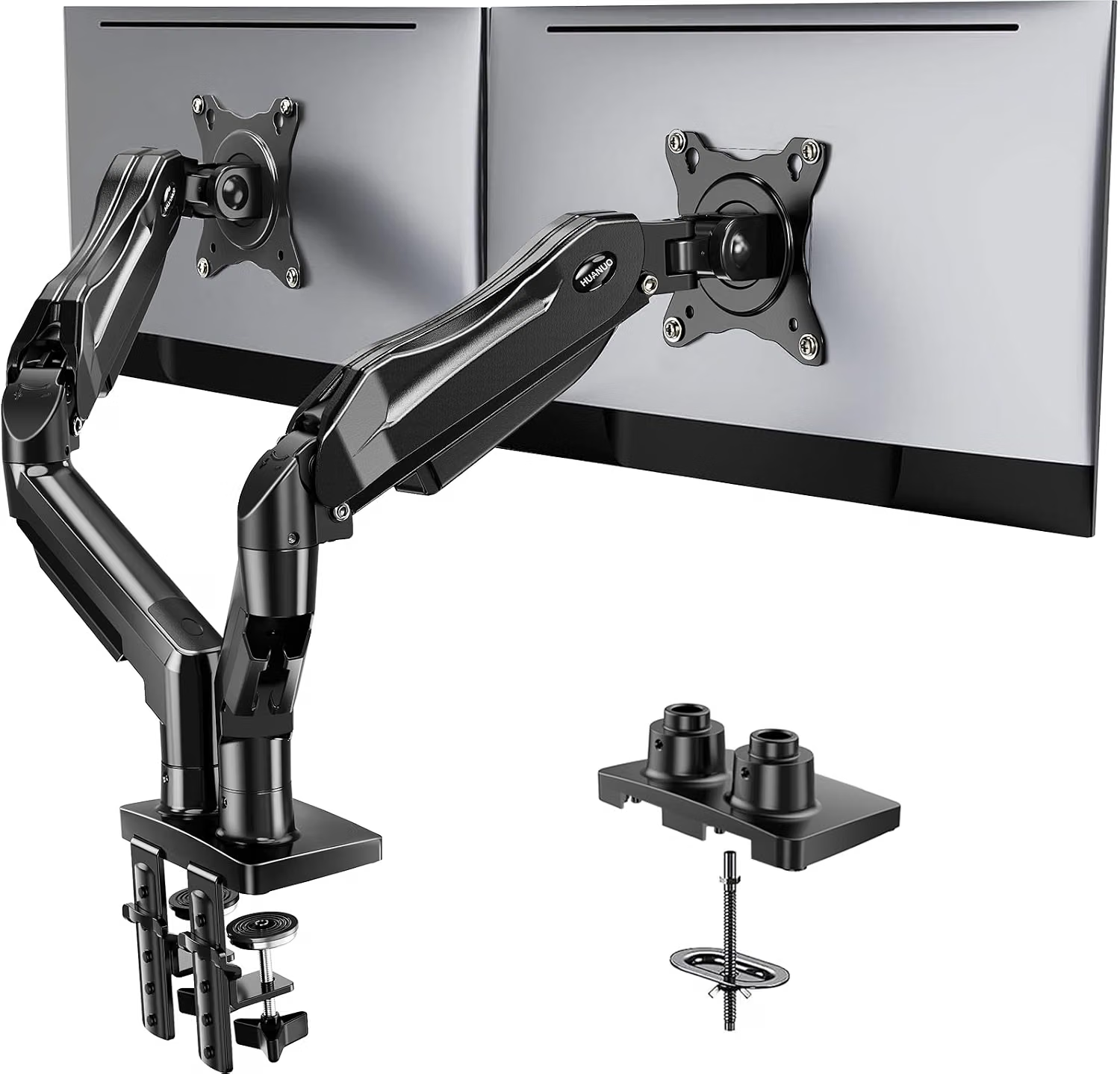
    The HUANUO Dual Monitor Stand is designed for users who want to mount two monitors on one stand and adjust their positioning around the workstation. Its design is intended for compatible displays and desks, making it relevant to home offices, gaming setups, study spaces, trading workstations, creative environments, and professional desks.

    A monitor stand is not simply about raising a screen. Its real usefulness comes from how it changes the relationship between the monitors and the person using them. Height, viewing distance, tilt, rotation, and screen alignment can all affect how a workspace feels during long periods of computer use.

    At the same time, monitor stands have important installation requirements. The monitor’s mounting pattern, weight, size, desk construction, and available space all need to be considered before installation.

    This guide explores the HUANUO dual monitor stand, its general functionality, potential applications, installation considerations, and how it compares with other monitor-support categories.

    What Is a Dual Monitor Stand?

    A dual monitor stand is a mounting system designed to hold two displays from a shared support structure.

    Instead of using the original stand supplied with each monitor, compatible displays are attached to the monitor stand using their VESA mounting points.

    The stand then supports both monitors from a central base or mounting mechanism.

    This approach can provide several practical advantages.

    First, it can reduce the amount of desk surface occupied by monitor bases. Second, it can make screen positioning more flexible. Third, it can create a more consistent arrangement between two monitors.

    For example, both screens can be positioned at approximately the same height, angled toward the user, or arranged with one display slightly offset from the other.

    The exact range of adjustment depends on the stand’s construction and the monitor configuration.

    Key Features

    Dual-Monitor Support

    The central function of the HUANUO stand is its ability to support two monitors.

    A dual-monitor arrangement can be useful for many types of computer work.

    A professional might use one screen for a primary application and the other for communication or reference material.

    A student can keep research material open on one screen while writing on the other.

    A developer can place code on one display and documentation, testing tools, or terminal windows on another.

    A gamer or streamer can use one monitor for gameplay and another for chat, streaming controls, recording software, or other supporting applications.

    The usefulness of two screens depends on the user’s workflow, but the physical arrangement plays an important role in making the setup comfortable.

    Adjustable Monitor Positioning

    One of the main reasons people choose a monitor arm or stand instead of the original monitor bases is adjustability.

    A suitable dual monitor stand can allow the screens to be repositioned rather than forcing the user to work around fixed monitor stands.

    Depending on the adjustment mechanism, users may be able to change screen height, angle, orientation, and horizontal position.

    This can make it easier to create a viewing arrangement that matches the user’s desk and seating position.

    Adjustment is especially useful when the same desk is shared by different people or when the workspace is used for different tasks throughout the day.

    Desk-Space Management

    Two standard monitor stands can consume a surprising amount of desk area.

    The bases may occupy the central portion of the workspace, leaving less room for other equipment.

    A dual monitor stand can shift much of that support structure away from the immediate working area.

    This can create additional room for a keyboard, mouse, writing materials, speakers, charging accessories, or other equipment.

    The amount of space actually recovered depends on the desk and the mounting method.

    VESA-Compatible Monitor Mounting

    Monitor stands commonly use VESA mounting patterns to attach displays.

    VESA refers to standardized mounting-hole patterns used by many monitors and other displays.

    Before purchasing or installing a monitor stand, users should verify that their displays have a compatible VESA mounting pattern and that the stand supports the required configuration.

    Not every monitor is compatible with every VESA mount.

    Some displays may require an adapter, while others may have unusual mounting arrangements.

    Adjustable Viewing Angles

    The ability to angle a monitor can be useful when two displays are positioned side by side.

    Instead of leaving both screens completely flat, users can angle them slightly toward the center of the workspace.

    This can make the two-monitor arrangement feel more unified and may reduce the need to turn the head as far when moving attention between displays.

    The appropriate angle depends on screen size, viewing distance, desk depth, and personal preference.

    Height Adjustment

    Monitor height is another important consideration.

    A monitor positioned too low can encourage users to look downward for extended periods. A monitor positioned too high can create a different set of ergonomic challenges.

    A dual monitor stand can make it easier to adjust both screens to a suitable viewing height.

    For two-monitor setups, users may choose to align the top edges of the displays, align their centers, or position one screen as the primary display with the second slightly offset.

    There is no single arrangement that works for every desk.

    Cable Management

    A multi-monitor setup can create several cables.

    Each monitor may need a power cable and a video cable. Additional cables may be required for USB accessories, speakers, webcams, or other equipment.

    A monitor stand can help organize some of these cables by routing them along the support structure rather than leaving them loose across the desk.

    Good cable management can make the workspace easier to clean and can reduce the chance of cables becoming tangled.

    Users should still avoid sharply bending cables or creating tension at the monitor’s connection points.

    How It Can Be Used

    Home Office

    A dual monitor stand can be useful in a home office where desk space is limited.

    Consider a typical remote-work setup with two monitors, a laptop, keyboard, mouse, and notebook.

    Two separate monitor bases can occupy the center of the desk.

    Replacing those bases with a dual monitor stand can create a more open surface for the keyboard and other work materials.

    The monitors can also be positioned at a more deliberate viewing angle.

    Programming and Software Development

    Developers often work with several windows simultaneously.

    One screen can display an integrated development environment while the second shows documentation, a browser, terminal, testing environment, or communication tools.

    This arrangement can reduce the need to constantly minimize or switch between windows.

    A dual monitor stand can help position both displays so that the primary screen remains directly in front of the user while the secondary screen is slightly angled.

    Financial and Data Work

    Spreadsheets and data-heavy applications often benefit from additional screen space.

    A user may keep a spreadsheet on one monitor and a reference document, browser, or communication application on the other.

    A properly positioned dual monitor stand can keep both screens at a consistent viewing height.

    Users should still pay attention to text size and viewing distance. More screen area does not automatically mean that information should be displayed at a smaller scale.

    Content Creation

    Writers, designers, editors, and other content professionals may use two monitors to separate the main project from supporting tools.

    For example, a video editor could use one display for the timeline and preview while keeping media bins and supporting applications on another.

    A writer could use one screen for a document and another for research.

    A designer might keep a canvas on one display and tool panels or reference images on another.

    Gaming

    Dual-monitor gaming setups are common among some PC users.

    One monitor can be dedicated to a game while the second displays chat, streaming software, music controls, guides, or monitoring tools.

    A stand can help create a cleaner arrangement and reduce the desk space occupied by two separate bases.

    The gaming computer and monitors remain responsible for graphical performance; the monitor stand simply supports the physical arrangement.

    Streaming

    Streamers often have several pieces of equipment on the same desk.

    A dual-monitor arrangement can make it easier to monitor a broadcast on one screen while gaming or creating content on the other.

    The stand can help maintain a consistent screen height and free up additional room for microphones, cameras, controllers, or other accessories.

    Student Study Spaces

    Students often use laptops alongside external monitors.

    A two-monitor setup can allow course materials and notes to remain visible simultaneously.

    The stand can also be helpful when a small desk needs to accommodate both displays without dedicating large areas to separate monitor bases.

    Shared Workspaces

    In a shared office, the same desk may be used for different activities.

    Adjustable monitor positioning can make it easier to reconfigure the displays for different users or tasks.

    A stand can also create a more organized appearance by keeping both monitors attached to one support system.

    Who It May Be Suitable For

    Remote Workers

    Remote workers who spend significant time using two displays may benefit from having a more adjustable monitor arrangement.

    A dual stand can help turn a home desk into a more dedicated workstation.

    Students

    Students working with multiple windows can use two monitors for research, writing, online classes, and other computer-based tasks.

    The ability to reclaim desk space can be particularly useful on smaller study desks.

    Programmers

    Developers can use separate screens for coding and supporting information.

    The stand’s adjustability can also make it easier to create a primary and secondary viewing position.

    Gamers

    Gamers with two compatible displays can use a dual monitor stand to create a more structured setup.

    The freed desk area can also be used for other gaming accessories.

    Content Creators

    Video editors, graphic designers, photographers, and writers may find a two-screen arrangement useful when their software involves multiple panels and reference materials.

    Office Professionals

    People working with spreadsheets, documents, communication software, and browser-based applications can use two monitors to keep more information visible.

    Important Things to Consider

    Check the Monitor’s VESA Pattern

    The first compatibility check should be the monitor’s mounting pattern.

    Many displays use common VESA configurations, but the pattern can vary.

    The user should confirm that the monitor’s mounting holes match the stand’s supported VESA specifications.

    Check Monitor Weight

    Every monitor stand has a weight capacity.

    The combined weight of the two displays must remain within the stand’s supported range.

    The weight of a monitor can sometimes be higher than expected, particularly with larger displays.

    Users should check the monitor’s specifications rather than estimating based on screen size alone.

    Screen Size Matters

    Monitor size affects how two displays can be arranged.

    Two smaller monitors can usually be positioned side by side with less desk depth.

    Two larger monitors require more horizontal space and may need a wider viewing distance.

    A stand can improve the physical arrangement, but it cannot make an oversized pair of monitors fit comfortably on a desk that is too narrow.

    Desk Construction

    The mounting method matters.

    Depending on the stand configuration, the product may require a desk surface that can safely support the mounting system.

    Desks made from different materials can have different structural characteristics.

    Users should follow the manufacturer’s installation requirements and avoid mounting hardware to surfaces that are too weak or unsuitable.

    Desk Thickness

    Many desk-mounted monitor stands have specific thickness requirements.

    The mounting mechanism needs enough material to secure the stand properly.

    Before installation, measure the desk rather than assuming compatibility.

    Clearance Behind the Desk

    A monitor stand may require space behind the desk for its mounting mechanism.

    If the desk is directly against a wall, there may not be enough room for the mounting hardware.

    The position of nearby shelves, drawers, cable trays, or wall-mounted equipment should also be considered.

    Monitor Placement

    Two monitors can be arranged in several ways.

    A common configuration is a shallow inward angle, creating a slight curve around the user.

    Another approach is to keep both displays nearly flat.

    Some users may prefer one monitor directly centered and the second positioned to the side.

    The ideal arrangement depends on how often each display is used.

    Weight Distribution

    Two monitors should be installed according to the manufacturer’s instructions.

    After mounting, users should check that the support structure remains stable and that both displays stay in the intended position.

    If one display is significantly heavier than the other, adjustment may require additional attention.

    Cable Length

    When monitors are repositioned, cable length can become a limitation.

    A monitor may need enough slack to accommodate height or angle adjustments.

    Cables should not be stretched tightly between the display and computer.

    Cable Routing

    A clean monitor setup usually benefits from separating power cables from video cables where practical and routing them along the stand or desk.

    The objective is not simply appearance.

    Organized cables are easier to identify and less likely to become tangled.

    Installation Safety

    Monitor stands support heavy equipment above a desk.

    Installation should therefore be performed carefully.

    All mounting hardware should be properly tightened according to the manufacturer’s instructions.

    The monitor should be supported during installation rather than allowed to hang from partially secured hardware.

    After installation, users should verify stability before leaving the displays unattended.

    Comparing General Monitor Support Categories

    Original Monitor Stands

    The standard stand included with a monitor is usually the simplest option.

    It requires no separate mounting hardware and is generally designed specifically for that display.

    The disadvantage is that each monitor requires its own base, which can consume considerable desk space.

    Adjustment options can also be more limited depending on the monitor.

    Single Monitor Arms

    A single monitor arm supports one display.

    This can be appropriate for users who have only one monitor or want to mount a primary display independently.

    Single arms can offer significant positioning flexibility.

    However, a dual-monitor setup would require two separate arms, which can result in a more complicated installation.

    Dual Monitor Stands

    A dual monitor stand supports two displays through one mounting structure.

    This can simplify a two-screen setup and provide a unified arrangement.

    It can also reduce the number of mounting points required on the desk.

    Multi-Monitor Arms

    Some systems are designed for three or more displays.

    These are useful for specialized workstations where multiple screens are essential.

    They also require more desk space, stronger mounting considerations, and careful weight management.

    Wall-Mounted Monitor Systems

    Wall mounting can remove monitor support hardware entirely from the desk.

    This can be useful in permanent workstations.

    However, installation is more involved and less flexible if the desk or room layout changes.

    A desk-mounted dual stand can provide a balance between adjustability and installation simplicity.

    Creating a Comfortable Two-Monitor Setup

    The physical arrangement of the screens matters almost as much as the stand itself.

    Start by deciding which monitor is the primary display.

    If one screen is used more frequently, positioning it directly in front of the user can reduce unnecessary head movement.

    The secondary screen can then be placed beside it and angled slightly inward.

    For users who split their time equally between both displays, centering the gap between the monitors may make more sense.

    Screen height should also be considered.

    Many users find it useful to keep the upper portion of the displays around a comfortable eye-level position rather than forcing the neck to remain tilted upward or downward.

    The appropriate position varies depending on the user’s height, chair, desk, monitor size, and viewing distance.

    Two Monitors for Productivity

    Two displays can change how applications are organized.

    Instead of constantly switching between windows, users can place related tasks on separate screens.

    For example:

    Monitor 1: Primary work
    Monitor 2: Reference and communication

    This simple division can work for many workflows.

    A researcher could keep source material on one screen and notes on another.

    A developer could keep code on one screen and a browser or terminal on another.

    An administrator could keep a spreadsheet visible while monitoring email or communication tools.

    The goal is to reduce unnecessary window switching rather than simply filling both screens with information.

    Two Monitors for Creative Work

    Creative workflows often involve several supporting panels.

    Video editing software can contain timelines, previews, media libraries, and controls.

    Graphic design applications may include layers, brushes, properties, and reference materials.

    With two monitors, users can separate the primary creative area from supporting tools.

    The monitor stand helps make this physical arrangement more manageable by positioning both displays according to the workspace.

    Two Monitors for Communication

    Remote work has increased the importance of communication tools.

    A user can dedicate one monitor to a video call, messaging application, or collaboration platform while using the other for the primary task.

    This can make it easier to reference documents without constantly leaving the communication window.

    Again, the physical monitor position matters. The primary display should remain comfortable to view, while the secondary display can be positioned where it is easy to glance toward.

    Desk-Space Organization

    One of the practical benefits of replacing two standard monitor bases is the amount of open surface created underneath and around the screens.

    That space can be used for:

    • A larger keyboard
    • A mousepad
    • Writing materials
    • Speakers
    • Charging accessories
    • A laptop
    • A notebook
    • Other desk equipment

    The exact amount of space recovered depends on the original monitor stands and the desk layout.

    Cable management should be considered at the same time. A cleaner arrangement is easier to maintain when cables are routed deliberately rather than simply moved from one location to another.

    Frequently Asked Questions

    What is a dual monitor stand?

    A dual monitor stand is a mounting system designed to support two computer displays from one shared structure.

    Why use a dual monitor stand?

    It can help organize two monitors, free some desk space, and provide more flexibility in screen positioning compared with separate monitor bases.

    Can any two monitors be mounted on it?

    No. The monitors need to meet the stand’s compatibility requirements, including supported VESA mounting patterns, weight limits, and screen-size specifications.

    What is VESA?

    VESA refers to standardized mounting-hole patterns used on many monitors and display products.

    How do I know whether my monitor is VESA compatible?

    Check the monitor’s specifications or inspect the rear of the display for a compatible mounting-hole pattern. The required pattern should match one supported by the monitor stand.

    Can a dual monitor stand support different-sized monitors?

    That depends on the stand’s specifications and weight limits. Two displays of different sizes may be possible if both remain within the supported range and can be positioned safely.

    Can the monitors be adjusted individually?

    Adjustment capabilities depend on the stand’s design. Users should consult the product’s specific adjustment specifications before assuming that every movement is independently available.

    Does a monitor stand improve monitor performance?

    No. A monitor stand changes the physical positioning of the displays. It does not increase resolution, refresh rate, color accuracy, or graphics performance.

    Can it be used for gaming?

    A dual monitor stand can be used as part of a gaming workstation when the monitors meet the stand’s compatibility requirements.

    Can it be used for office work?

    Yes. Two-monitor setups are commonly useful for documents, spreadsheets, communication tools, research, and other productivity tasks.

    Is a dual monitor stand suitable for a small desk?

    It can help reclaim surface space compared with two separate monitor bases, but the desk still needs enough width and depth for the two displays.

    Does the desk need to be drilled?

    That depends on the specific mounting method. Users should follow the manufacturer’s installation instructions and determine whether their desk already has a suitable mounting configuration.

    Can the stand be installed on any desk?

    No. Desk thickness, construction, available clearance, and mounting compatibility should be checked before installation.

    How important is monitor weight?

    It is very important. The combined weight of the displays should remain within the stand’s specified capacity.

    Can I move the monitors after installation?

    A key purpose of an adjustable monitor stand is to allow repositioning, but movement should be performed within the stand’s intended adjustment range.

    Can the monitors be rotated vertically?

    Whether portrait orientation is supported depends on the stand and monitor configuration. Users should verify the specific adjustment capabilities.

    How should two monitors be positioned?

    A common arrangement is to place the primary display directly in front of the user and angle the second display slightly inward. Users who work equally on both screens may prefer to center the gap between them.

    Should both monitors be at the same height?

    Many users prefer aligned displays because it creates a consistent visual plane, but the appropriate height depends on the user’s seating position and the type of work being performed.

    Can a monitor stand reduce cable clutter?

    It can help by providing a structured path for cables around the support system, but additional cable management may still be necessary.

    Is a dual monitor stand better than two separate monitor stands?

    They serve different purposes. A dual stand can reduce desk-base clutter and provide a unified mounting arrangement, while separate stands require no special mounting compatibility beyond the monitors themselves.

    What should I check before installing the stand?

    Check the monitor VESA pattern, monitor weight, screen size, desk thickness, desk construction, available clearance, mounting requirements, and cable length.

    Conclusion

    The HUANUO Dual Monitor Stand is designed to provide a centralized mounting solution for two compatible computer monitors.

    For modern workspaces, the value of a dual monitor stand goes beyond simply holding two screens. It can help organize the physical layout of a desk, reduce the amount of surface occupied by traditional monitor bases, and provide greater flexibility in positioning displays.

    This can be useful across a wide range of environments.

    Remote workers can use two monitors for work applications and communication. Students can separate research from writing. Developers can keep code and supporting tools visible simultaneously. Creative professionals can dedicate different screens to primary projects and supporting applications. Gamers and streamers can use a second display for chat, monitoring, or other tools.

    The installation requirements are important, however.

    Before mounting the displays, users should confirm VESA compatibility, monitor weight, supported screen size, desk thickness, desk construction, and available clearance. The physical arrangement of cables should also be planned so that changing the position of the monitors does not create unnecessary tension.

    Once installed, the monitors can be positioned according to the user’s workflow. A primary display can remain centered, while a secondary screen can be angled slightly inward. Alternatively, both displays can be arranged symmetrically when they are used equally.

    Compared with keeping two original monitor stands on a desk, a dual mounting system can create a more unified workspace and free some surface area. Compared with using two separate monitor arms, a dual stand can provide a single support structure for a two-screen setup.

    Ultimately, the right configuration depends on the monitors, desk, working habits, and available space.

    For anyone planning a two-monitor workstation, checking the hardware compatibility before installation is just as important as considering the visual arrangement. When the stand, monitors, and desk are appropriately matched, a dual monitor setup can become a more organized and adaptable part of a modern workspace.
    You can check more details on Amazon here.

  • Acer 8-in-1 USB-C Hub 10Gbps: A Practical Guide to Expanding Laptop Connectivity

    Acer 8-in-1 USB-C Hub 10Gbps: A Practical Guide to Expanding Laptop Connectivity

    Modern laptops are increasingly designed around USB-C. The connector is compact, reversible, and capable of supporting several different functions depending on the computer and the port implementation. At the same time, many newer laptops provide fewer traditional connections than older computers did.

    That change can be convenient for manufacturers and users who prefer thinner devices, but it can create a practical problem at the desk.

    A laptop may need to connect to an external monitor, USB storage, a keyboard, mouse, camera, memory card, or other accessory. If the computer has only a small number of physical ports, connecting everything directly may not be possible.

    A USB-C hub provides one solution.

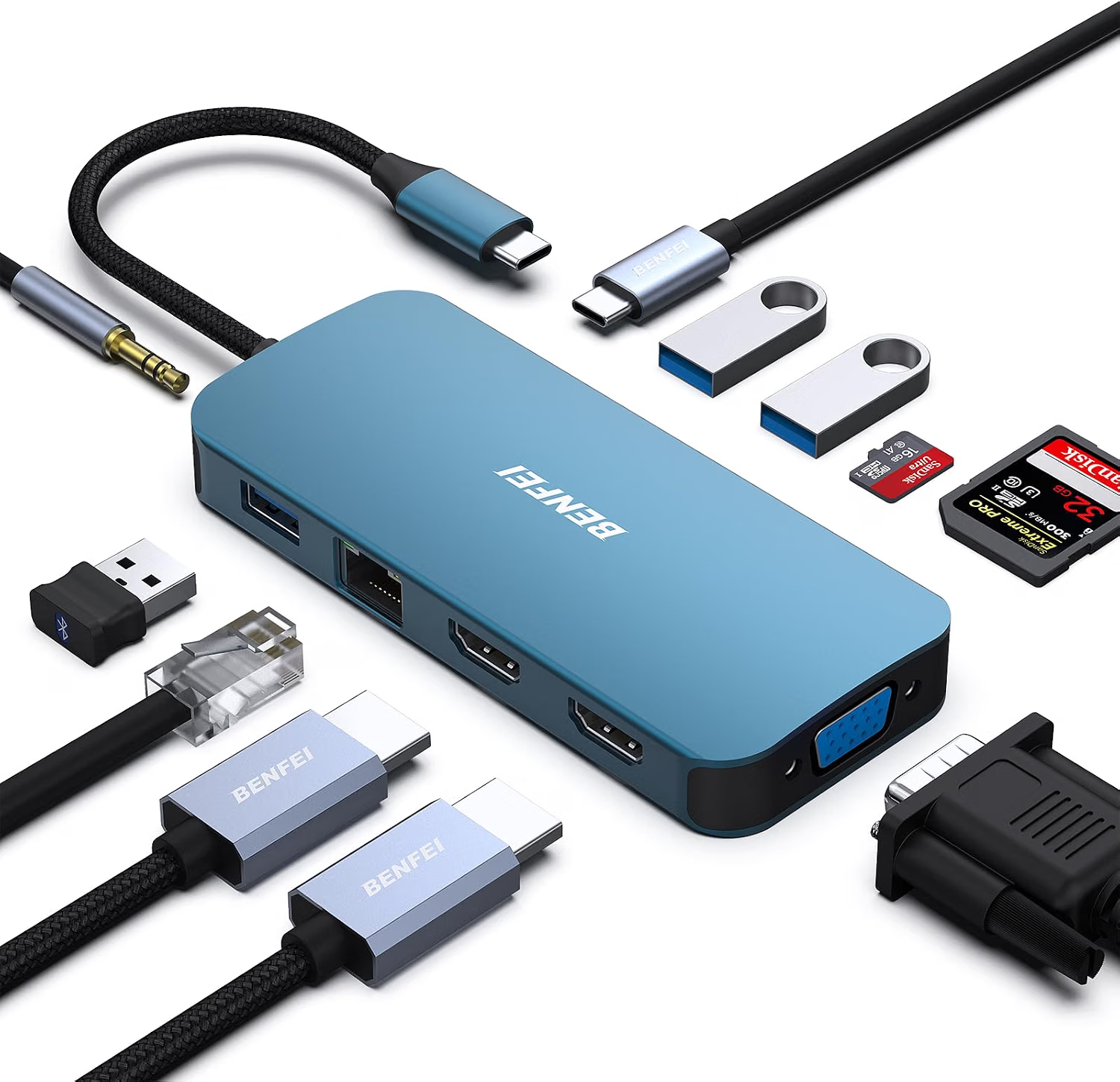
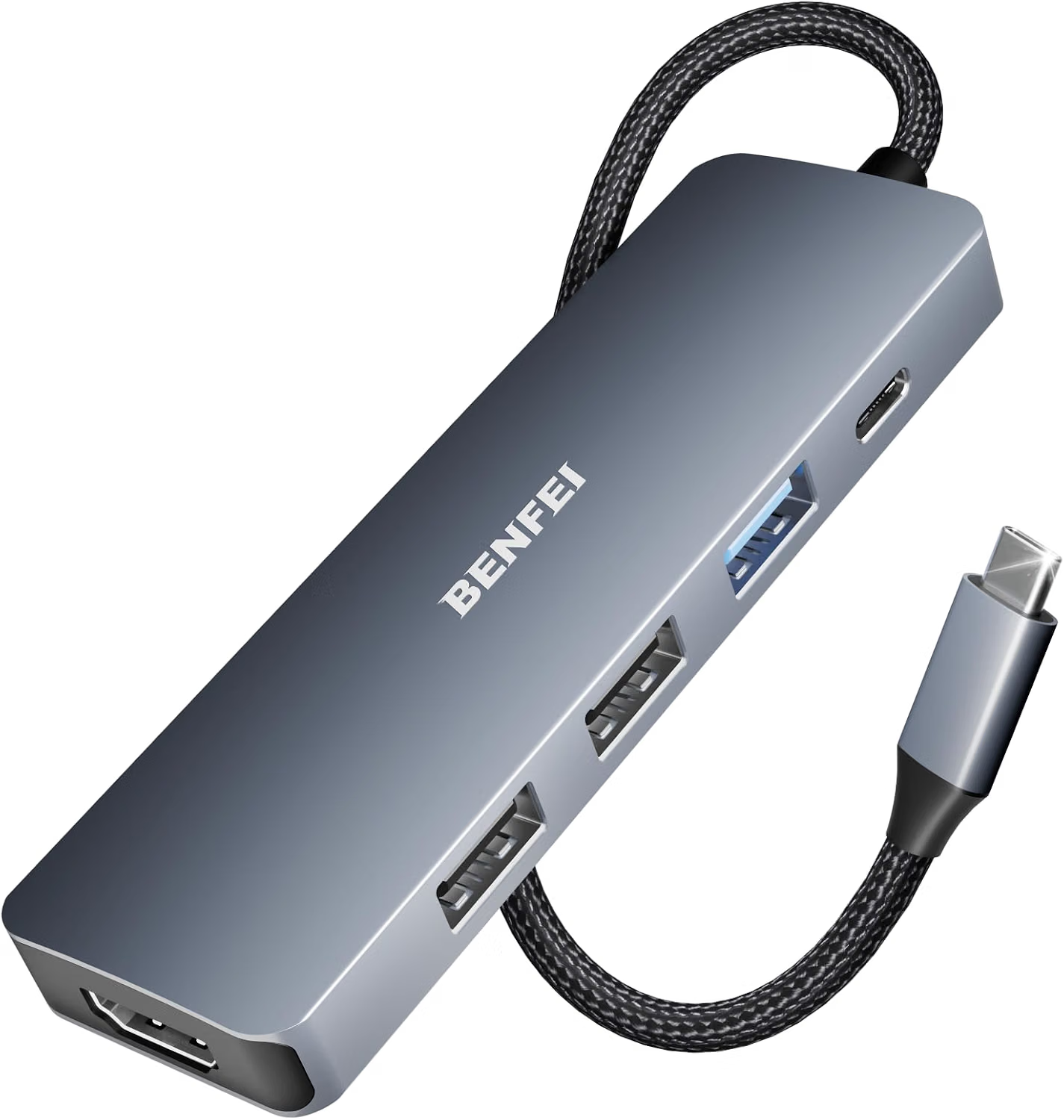
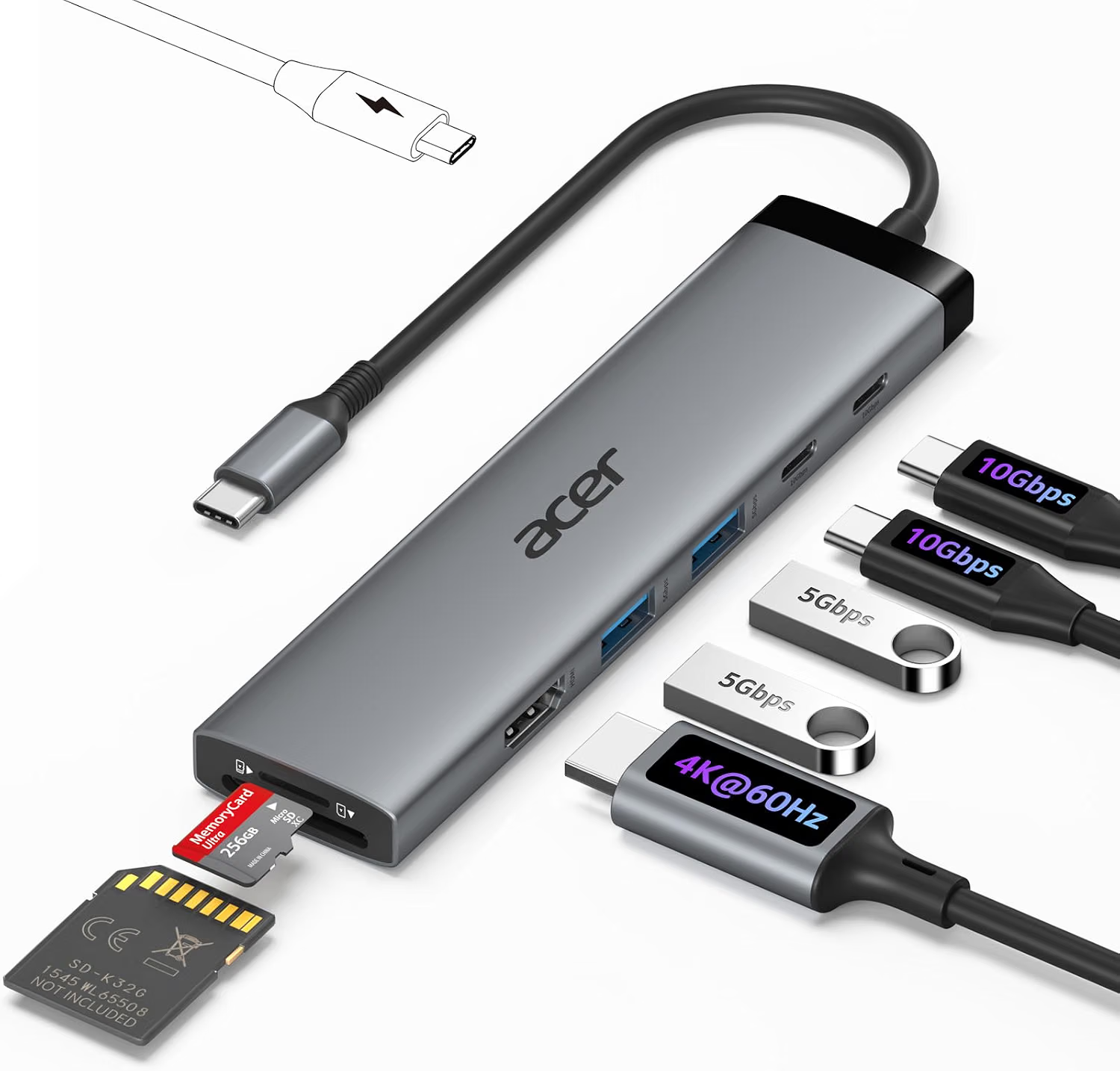
    The Acer 8-in-1 USB-C Hub is designed to expand the connectivity of a compatible laptop or Mac through a USB-C connection. Its configuration is aimed at combining several everyday interfaces in one compact accessory, including high-speed USB connectivity and HDMI video output with support for up to 4K at 60Hz when the host system and connected equipment support the required standards.

    The advertised 10Gbps USB capability is also relevant for users who regularly move files or connect higher-bandwidth peripherals.

    A hub such as this can serve several roles. It can become a small desktop docking point, a travel adapter, a way to connect older USB accessories to a newer laptop, or a convenient bridge between a computer and an external display.

    However, USB-C hubs are not universal in the sense that every USB-C port supports the same functions. The computer, cable, operating system, display, and connected accessories all contribute to the final experience.

    This guide explores the Acer 8-in-1 USB-C Hub, its practical applications, important technical considerations, and how it compares with other general categories of USB-C connectivity accessories.

    What Is an 8-in-1 USB-C Hub?

    A USB-C hub takes one compatible USB-C connection on a host computer and expands it into several additional ports.

    The purpose is straightforward: instead of carrying multiple single-purpose adapters, a user can connect several accessories through one centralized device.

    An 8-in-1 hub can be particularly useful with laptops that have moved away from traditional USB-A, HDMI, and other full-size ports.

    For example, a modern laptop might provide two USB-C ports but still need to work with:

    • An HDMI monitor
    • A USB-A keyboard
    • A USB-A mouse
    • External storage
    • A memory card
    • Another USB accessory

    A multi-port hub can provide a central connection point for those devices.

    The actual eight interfaces included in a specific hub should always be confirmed against the manufacturer’s current specifications. The Acer model discussed here is marketed around a combination of USB-C connectivity, HDMI display output, and additional peripheral interfaces.

    Key Features

    10Gbps USB Connectivity

    One of the notable specifications of this Acer hub is support for USB data speeds up to 10Gbps on compatible connections.

    A 10Gbps theoretical interface can provide considerably more bandwidth than older USB standards.

    This can matter when transferring large files between a laptop and an external SSD, working with sizable media files, or using higher-bandwidth USB peripherals.

    However, a “10Gbps” rating describes the maximum supported link speed under the appropriate conditions. It does not mean every connected device will transfer data at exactly 10Gbps.

    Actual performance depends on the USB port being used, the connected peripheral, cable quality, storage technology, operating system, and the host computer.

    For example, a traditional USB flash drive may operate much more slowly than a modern external SSD even when both are connected through the same hub.

    USB-C Host Connection

    The hub connects to a compatible computer through USB-C.

    USB-C is valuable because it can carry different kinds of signals through the same physical connector. Depending on the host device, it can support data transfer, video output, and power-related functions.

    The important word is “depending.”

    Not every USB-C port provides the same capabilities. A laptop’s USB-C port may support data only, while another port on the same computer may also support external displays.

    This distinction becomes particularly important when using the hub’s HDMI output.

    HDMI Output

    The Acer hub is designed to provide HDMI connectivity for an external display.

    This allows a compatible laptop to connect to a monitor, television, projector, or other HDMI-equipped display.

    For office productivity, an external monitor can provide additional workspace. A user can keep one application on the laptop screen and another on the larger display.

    For presentations, HDMI can also provide a convenient connection to compatible projectors and conference-room displays.

    4K at 60Hz

    The product is marketed with 4K HDMI support at up to 60Hz.

    4K describes a high-resolution display format, while 60Hz refers to the refresh rate.

    A 60Hz display refreshes the image 60 times per second and is widely used for everyday computer work, streaming, and general productivity.

    However, achieving 4K at 60Hz requires more than the hub itself.

    The laptop must support the necessary video-output mode through its USB-C connection. The display must support the desired resolution and refresh rate. The HDMI cable must also be appropriate for the intended signal.

    If any component has a lower limitation, the final display configuration may operate at a lower resolution or refresh rate.

    Multiple Connectivity Options

    The main advantage of an 8-in-1 hub is the combination of several ports in one accessory.

    This can reduce the need to carry individual dongles for different connections.

    For example, a user could connect a display through HDMI while also connecting USB peripherals and storage devices through the hub.

    This makes the accessory useful for both stationary workstations and mobile setups.

    Compact Form Factor

    USB-C hubs are generally designed with portability in mind.

    Instead of carrying a full-size docking station, a user can place a small hub in a laptop bag or backpack.

    This can be useful for students, remote workers, business travelers, and anyone who frequently moves between different workspaces.

    A compact hub can also remain connected to a desk setup without taking up much room.

    How It Can Be Used

    Connecting a Laptop to an External Monitor

    One of the simplest uses is adding a larger display to a laptop.

    A laptop can connect to an HDMI monitor through the hub.

    Once the display is recognized, the operating system can generally be configured to mirror the laptop screen or extend the desktop, depending on the computer and operating system.

    Extended-display mode is particularly useful for productivity.

    For example, a document can remain open on one screen while a browser or reference material is displayed on the other.

    This reduces the need to repeatedly switch between windows.

    Building a Small Home Office

    A USB-C hub can become the center of a compact home office setup.

    A laptop can connect to the hub while the hub handles the external monitor and USB peripherals.

    A keyboard and mouse can remain connected to the hub, while the laptop maintains a relatively clean connection with only one USB-C cable.

    When the user needs to leave, disconnecting the laptop from the hub can make the computer mobile again.

    This type of setup is especially convenient for people who use one laptop for both home and mobile work.

    Connecting USB-A Accessories

    Many people still own USB-A peripherals.

    Keyboards, mice, flash drives, webcams, external storage devices, printers, and other accessories can use the older rectangular USB connector.

    A USB-C hub can provide a bridge between these accessories and a newer computer.

    This means users do not necessarily need to replace functional peripherals simply because their new laptop has fewer USB-A ports.

    Using External Storage

    External SSDs and other storage devices can be useful for backups, media libraries, project files, and transferring information between computers.

    A high-speed USB connection can reduce transfer times when the storage device and host computer support the required speeds.

    For example, someone editing large video files may benefit more from a fast external SSD than someone transferring small documents.

    The hub’s advertised 10Gbps capability is relevant in such situations, but actual transfer speeds remain dependent on the complete hardware chain.

    Connecting Memory Cards

    Many compact USB-C hubs include memory-card interfaces as part of their multi-port design.

    These can be useful for photographers, videographers, and users who regularly transfer files from removable storage.

    A laptop without a built-in card reader can gain this functionality through a compatible hub.

    The workflow is straightforward: insert the card into the appropriate reader, connect the hub to the computer, and access the card through the operating system.

    Presentations

    A USB-C hub with HDMI can be useful for presentations.

    A presenter can connect a laptop to a conference-room display or projector through HDMI.

    The hub can remain in the laptop bag and provide a familiar connection point when arriving at different meeting spaces.

    Before an important presentation, it is sensible to test the laptop, hub, HDMI cable, and display together.

    A projector may support only certain resolutions or refresh rates, and some organizational systems may have additional requirements.

    Classroom and University Use

    Students often encounter different types of technology throughout a school or university environment.

    A classroom may provide HDMI, while another location might have different equipment.

    A compact multi-port hub can provide flexibility when a laptop has limited built-in ports.

    It can also allow students to connect USB accessories without carrying several separate adapters.

    Travel

    Travel is another practical application.

    A person who works remotely may need to connect their laptop to different displays, USB accessories, and storage devices in hotels, coworking spaces, offices, or temporary workstations.

    A compact hub can consolidate these connections.

    Instead of carrying a dedicated HDMI adapter, USB adapter, and other individual accessories, several functions can be combined into one device.

    Who It May Be Suitable For

    Laptop Users With Limited Ports

    This is perhaps the most obvious audience.

    If a laptop provides primarily USB-C connections but the user’s accessories still rely on USB-A or HDMI, a hub can fill the physical connectivity gap.

    Mac Users

    MacBooks are frequently used with USB-C accessories, particularly when users need external monitors or traditional USB peripherals.

    A compatible hub can help create a more flexible desk setup.

    The exact Mac model should still be checked because external-display support can differ between generations.

    Windows Laptop Users

    Windows laptops from many manufacturers use USB-C for connectivity.

    A compatible Acer hub can provide additional ports for external displays and peripherals.

    Compatibility should be confirmed against the exact laptop model, particularly when video output is required.

    Students

    Students can use a USB-C hub to connect laptops to classroom displays, external storage, USB accessories, and other equipment.

    The compact format also makes it easier to carry between locations.

    Remote Workers

    A remote worker can leave the hub connected to a home office monitor, keyboard, mouse, and other peripherals.

    The laptop can then be connected or disconnected using a single USB-C connection.

    Content Creators

    Photographers, video editors, designers, and other creators often work with external storage and displays.

    A multi-port hub can simplify access to those devices, although demanding workloads should be matched to the hub’s exact USB specifications.

    Important Things to Consider

    Verify USB-C Video Support

    The most important compatibility check is the host computer’s USB-C port.

    The hub’s HDMI output requires the laptop’s USB-C connection to support an appropriate video-output technology.

    A USB-C port that supports data only may not provide a display signal.

    The computer’s specifications should therefore be checked before assuming HDMI will work.

    4K 60Hz Is a System-Level Capability

    The hub can support the advertised HDMI mode, but the entire system must support it.

    The laptop needs appropriate graphics and USB-C video capabilities. The monitor needs to accept the desired signal. The HDMI cable also needs to support the required bandwidth.

    If one component is limited to a lower specification, the final result may be lower than 4K at 60Hz.

    10Gbps Is a Maximum Interface Speed

    A 10Gbps USB specification represents theoretical connection bandwidth.

    Actual file transfers are affected by storage hardware, file size, filesystem behavior, computer performance, cable quality, and other connected devices.

    For everyday peripherals such as keyboards and mice, bandwidth is rarely a significant concern.

    For external SSDs and other high-speed equipment, it becomes more important.

    USB-C Does Not Automatically Mean Charging

    Some USB-C hubs support Power Delivery passthrough, while others focus primarily on data and display connectivity.

    Users who need to charge a laptop through the hub should verify whether the specific model provides the necessary charging functionality.

    A USB-C port on a hub should not automatically be interpreted as a laptop charging port.

    Power Requirements

    A hub draws power from its host connection unless it has another power source.

    When several peripherals are connected, the available power and bandwidth are shared according to the hub’s design.

    Bus-powered accessories such as portable drives can therefore behave differently depending on the number and type of connected devices.

    External Monitor Limitations

    The presence of one HDMI output does not mean that multiple external displays can be connected through every possible method.

    Users who require two or three external monitors may need a docking station specifically designed for multi-display configurations.

    They should also verify whether the computer itself supports the desired number of external displays.

    Operating System Support

    Windows and macOS can handle external devices differently.

    Display management, storage access, USB permissions, and other functions can vary between operating systems.

    It is therefore useful to confirm compatibility for the exact computer and operating-system version being used.

    Cable Quality Matters

    A hub cannot compensate for a cable that does not support the required signal or data rate.

    For high-resolution HDMI output or high-speed USB transfers, the appropriate cable specifications should be considered.

    A low-capability cable can become the limiting component.

    Heat Management

    USB hubs can become warm during normal operation, particularly when several connections are active.

    The hub should be kept in an open area where heat can dissipate.

    It should not be covered by clothing, papers, or other materials that restrict airflow.

    Comparing General USB-C Accessory Categories

    Single-Port Adapters

    A single-port adapter is designed to solve one specific connectivity problem.

    For example, a USB-C-to-HDMI adapter can be useful for someone who only needs an external display.

    Its simplicity can make it easy to carry.

    The limitation is that additional accessories require additional adapters.

    Basic USB-C Hubs

    Basic hubs usually provide a few USB-A ports and perhaps HDMI.

    They can be appropriate for users with relatively simple connectivity requirements.

    They tend to be compact and portable.

    8-in-1 USB-C Hubs

    An 8-in-1 hub provides a broader range of connectivity in one device.

    This can be useful for users who need several types of peripherals but still want something smaller than a full desktop docking station.

    The Acer 8-in-1 model is aimed at this middle category.

    Multi-Display Docking Stations

    Multi-display docking stations are designed for more demanding desktop configurations.

    They may provide several display outputs, Ethernet, USB ports, charging, and other connections.

    They are more appropriate for users who regularly operate a multi-monitor workstation.

    A smaller 8-in-1 hub may be more suitable when portability and moderate connectivity are more important.

    Thunderbolt and USB4 Docks

    Thunderbolt and USB4 docks can provide high-bandwidth connectivity and advanced display capabilities on compatible computers.

    However, their advantages are most relevant when the host device also supports the required technology.

    A USB-C hub can be a simpler solution when the user’s needs are limited to standard USB peripherals, one external display, and other common connections.

    Setting Up an External Monitor

    A straightforward setup begins with checking the laptop.

    Confirm that the USB-C port supports external video.

    Next, connect the hub to the laptop.

    Connect the HDMI cable from the hub to the monitor.

    The display should then be selected through the computer’s display settings.

    Users can typically choose between mirroring the laptop screen and extending the desktop, depending on the operating system.

    If the monitor does not display an image, several possibilities should be checked:

    • The laptop’s USB-C port may not support video.
    • The monitor may be set to the wrong input.
    • The HDMI cable may be incompatible or defective.
    • The chosen resolution may not be supported.
    • The operating system may need display settings adjusted.
    • The hub may require a specific connection arrangement.

    Checking each component individually can make troubleshooting easier.

    Using a High-Speed External SSD

    A fast external SSD can take advantage of a high-speed USB interface when all components support the appropriate standard.

    For example, a user could keep large project files on an external SSD and connect it to the laptop through the hub.

    The actual transfer rate will depend on the SSD, USB port, cable, host system, and other factors.

    Users should also remember that copying a large number of small files can produce different results from transferring one large continuous file.

    Therefore, the 10Gbps specification is best understood as an interface capability rather than a guaranteed file-transfer speed.

    Managing a Portable Workstation

    A useful way to think about a multi-port USB-C hub is as a portable workstation connector.

    At home, the hub can remain connected to a monitor, keyboard, mouse, storage device, and other accessories.

    When the laptop needs to travel, the user can disconnect one USB-C cable.

    At another location, the same hub can provide access to the necessary accessories.

    This arrangement can be especially useful for people who use a laptop as both a mobile computer and their primary desktop machine.

    Cable Management Tips

    A hub can reduce cable clutter, but it does not eliminate the need for organization.

    At a permanent desk, the hub can be positioned near the rear edge of the workspace.

    USB cables can then be routed toward the keyboard, mouse, storage devices, and other accessories.

    The HDMI cable can travel toward the monitor, while the host USB-C cable connects to the laptop.

    Keeping cables grouped by function can make troubleshooting easier.

    It is also useful to avoid sharply bending the host cable or placing heavy objects on it.

    Understanding USB-C Naming

    USB-C can sometimes be confusing because the connector itself does not define the complete set of capabilities.

    USB-C is the physical connector format.

    USB 3.x, USB4, Thunderbolt, DisplayPort Alt Mode, and USB Power Delivery describe different aspects of the technology.

    A laptop can therefore have a USB-C connector without supporting every feature that users associate with USB-C.

    This is why checking the computer’s specifications is so important when choosing a hub.

    Frequently Asked Questions

    What is the Acer 8-in-1 USB-C Hub used for?

    It is designed to expand the connectivity of compatible laptops and Mac computers by providing multiple ports through a USB-C connection. It can be used for displays, USB peripherals, storage, and other supported accessories.

    Does it support 4K HDMI?

    The product is marketed with HDMI support up to 4K at 60Hz. The host computer, HDMI cable, and display must also support the required configuration.

    Does every laptop support 4K at 60Hz through this hub?

    No. The laptop’s USB-C port must support the appropriate video-output capabilities, and the computer and display must support the desired resolution and refresh rate.

    What does 10Gbps mean?

    10Gbps refers to the maximum advertised USB data-transfer interface speed under compatible conditions. Actual transfer speeds depend on the host computer, hub port, cable, peripheral, and other factors.

    Can it connect an external SSD?

    A compatible external SSD can be connected through an appropriate USB port. Actual transfer performance depends on the SSD and the complete USB connection.

    Can I connect a keyboard and mouse?

    Compatible USB keyboards and mice can be connected through the hub’s available USB ports.

    Can it connect an HDMI monitor?

    Yes, the hub includes HDMI connectivity for compatible displays.

    Can it connect a television?

    A compatible HDMI-equipped television can potentially be used as an external display when the host computer supports the necessary video output.

    Can it be used for presentations?

    Yes. An HDMI connection can be used with compatible projectors or presentation displays.

    Does USB-C guarantee HDMI output?

    No. The host computer’s USB-C port must support an appropriate video-output mode.

    Can I use it with a MacBook?

    The product is designed for compatible Mac computers. Exact functionality depends on the Mac model and the capabilities of its USB-C ports.

    Can it work with Windows laptops?

    Compatible Windows laptops can use USB-C hubs, but the exact functions available depend on the computer’s USB-C implementation and operating system.

    Does it charge a laptop?

    Users should check the specific product specifications for Power Delivery support. A USB-C hub should not automatically be assumed to provide laptop charging simply because it connects through USB-C.

    Can it support multiple external monitors?

    The product includes HDMI connectivity, but users should verify the exact display configuration supported by the model. A single HDMI output does not automatically provide multiple independent external displays.

    Why is my monitor showing a lower resolution?

    The limitation could come from the laptop, hub, HDMI cable, monitor, or selected display settings. The entire connection chain must support the desired resolution and refresh rate.

    Why isn’t my USB device working?

    Possible causes include an incompatible port, insufficient power, driver or operating-system issues, cable problems, or limitations of the connected device.

    Can I use several USB devices simultaneously?

    Multiple compatible USB devices can be connected through the available ports. Their performance depends on the hub’s architecture and the shared connection to the host computer.

    Is this type of hub suitable for travel?

    A compact multi-port hub can be convenient for travel because it combines several common connections into one accessory.

    Is an 8-in-1 hub the same as a docking station?

    They serve similar purposes but are generally designed for different levels of connectivity. An 8-in-1 hub emphasizes compact expansion, while a full docking station may offer more ports, additional display outputs, networking, and other desktop-oriented features.

    Does the hub improve my laptop’s processing performance?

    No. A USB-C hub primarily expands physical connectivity. It does not upgrade the laptop’s processor, graphics processor, or internal storage.

    Can it replace the laptop’s built-in ports?

    It can supplement them by providing additional connections, but the hub still depends on the host computer’s capabilities.

    What should I check before purchasing a USB-C hub?

    Check the laptop’s USB-C specifications, required display resolution, number and type of USB devices, charging requirements, operating-system compatibility, and the types of ports you actually need.

    Conclusion

    The Acer 8-in-1 USB-C Hub is designed to address one of the most common connectivity challenges facing modern laptops: the growing gap between USB-C-equipped computers and the wide range of physical ports still required by everyday accessories.

    Its combination of USB connectivity and HDMI display support can make it useful in several situations. A remote worker can use it as the connection point for a home office. A student can carry it between classrooms and study spaces. A traveler can use it to connect a laptop to displays and traditional USB accessories. A professional working with external storage can take advantage of a high-speed USB interface when the computer and peripheral support the required standard.

    The advertised 4K at 60Hz HDMI capability can also be useful for compatible external displays, but it is important to remember that display performance depends on the entire system. The laptop’s USB-C port, graphics capabilities, monitor, HDMI cable, operating system, and hub all contribute to the final result.

    The same principle applies to the 10Gbps USB specification. It represents a high-speed interface capability, but real-world transfer rates depend on the connected storage device, cable, host system, file types, and other factors.

    For users who need several common connections without carrying a larger desktop docking station, an 8-in-1 USB-C hub can provide a practical middle ground between a simple single-purpose adapter and a more elaborate docking system.

    The most important step before using one is to identify exactly what the computer supports. USB-C is a versatile connector, but its capabilities vary between devices and even between different ports on the same computer.

    Once those specifications are understood, a multi-port hub can become a convenient part of a modern workstation, helping connect external displays, USB accessories, storage devices, and other peripherals through a centralized interface.

    You can check more details on Amazon here.

  • 3 1/4-Inch Desk Power Grommet With Retractable Cable: A Practical Guide for Modern Workspaces

    3 1/4-Inch Desk Power Grommet With Retractable Cable: A Practical Guide for Modern Workspaces

    A modern desk often has to accommodate much more than a computer. Phones, tablets, monitors, lamps, headphones, wireless chargers, speakers, and other accessories can all need power during the day. As the number of devices increases, the area around a desk can quickly become crowded with charging cables and power adapters.

    Traditional wall outlets are not always positioned where they are most convenient. Even a power strip placed on the floor or behind a desk may require users to reach around furniture whenever they need to connect a device.

    A desk power grommet approaches the problem from a different direction. Instead of keeping all electrical connections at the edge or underneath the desk, a grommet is installed directly into the desktop. This creates an accessible connection point within the working surface while allowing cables to be routed underneath the desk.

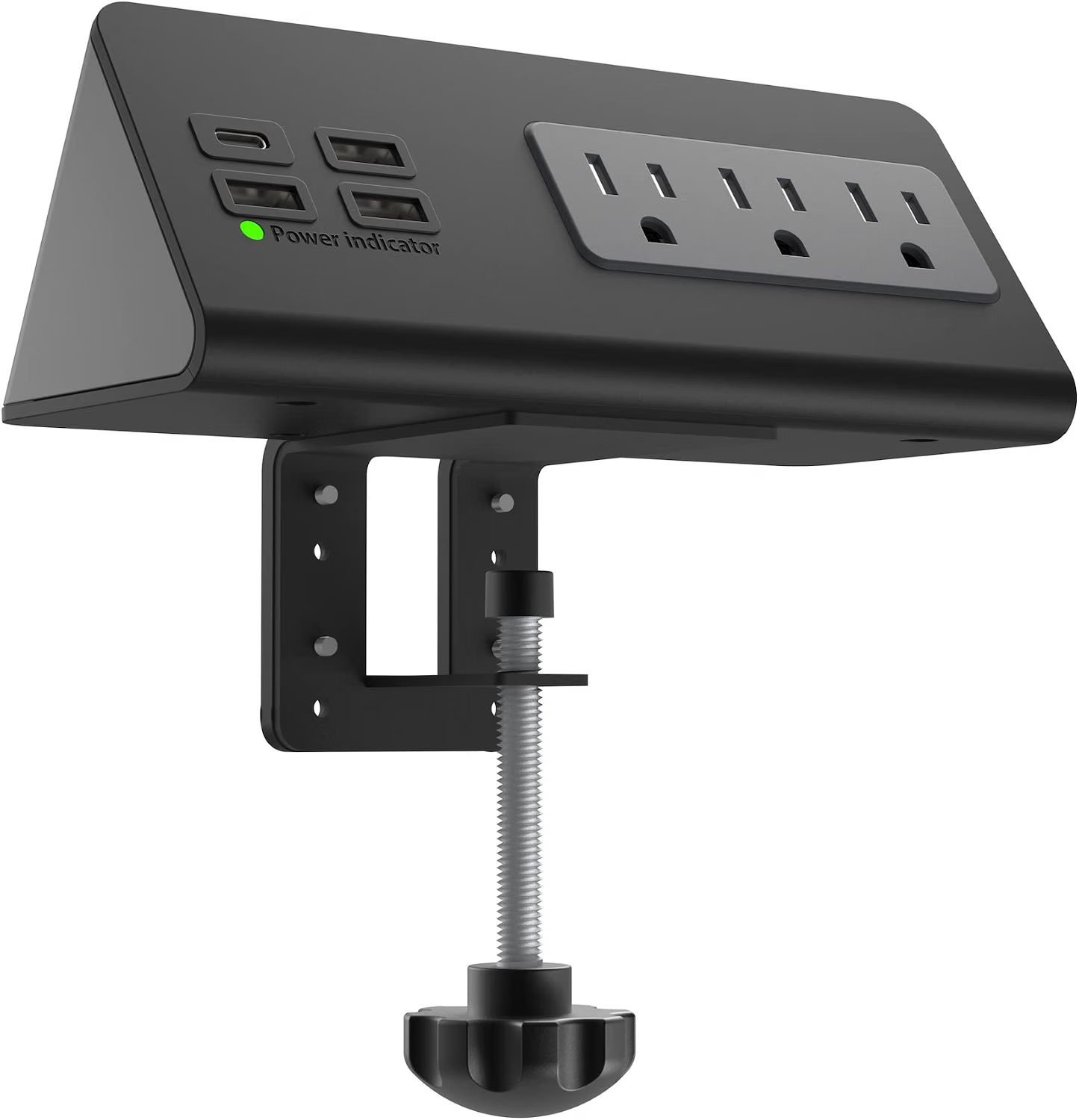
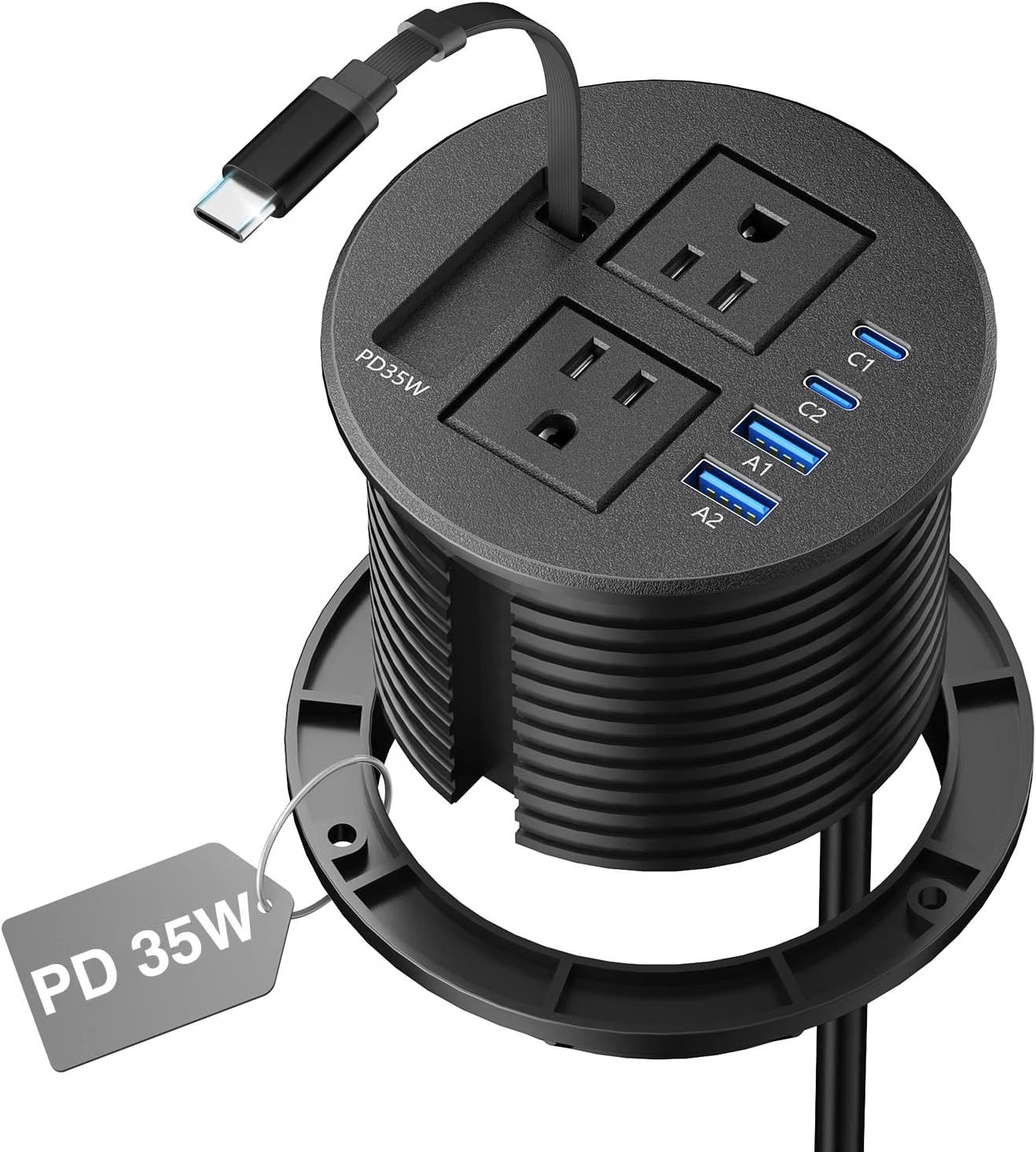
    The 3 1/4-inch Desk Power Grommet with Retractable Cable is designed for this type of workspace. Its configuration combines two AC outlets with two USB-C charging ports and includes a retractable cable. The product is intended to fit into a suitable 3 1/4-inch desk opening, creating a more integrated approach to power and cable management.

    This type of accessory can be useful in home offices, conference tables, study areas, reception desks, workstations, and other environments where convenient access to electricity is important.

    However, a desk power grommet is more than a collection of outlets. Installation requirements, desk thickness, electrical load, USB-C charging capabilities, cable routing, and the existing power source all affect how it should be used.

    Understanding these factors can help users determine whether a recessed or surface-integrated power solution makes sense for their workspace.

    What Is a Desk Power Grommet?

    A desk power grommet is an electrical accessory designed to be installed into a hole in a desk, tabletop, conference table, or similar surface.

    Traditional cable grommets are often used simply to allow wires to pass through a desk. A power grommet combines that cable-management concept with electrical outlets and charging ports.

    Instead of running a charging cable from a wall outlet across the entire desk, the user can have a power connection positioned directly within the desktop.

    The 3 1/4-inch measurement is particularly important because the desk needs to have an appropriately sized opening for the product to be installed correctly.

    This means that a power grommet is usually better suited to a planned workstation than a temporary power solution. Installation requires attention to the dimensions of the opening, the structure of the desk, and the routing of the power connection.

    Key Features

    Two AC Outlets

    The product includes two AC outlets for compatible electrical devices.

    These outlets can be useful for equipment that uses conventional power plugs rather than USB charging. Depending on the workstation, that could include a laptop power adapter, monitor, desk lamp, speakers, or another appropriate electronic device.

    Positioning AC outlets directly on the desktop can make connections easier to reach.

    For example, a user who frequently plugs and unplugs a laptop charger does not need to reach underneath the desk each time. The power connection can remain close to the normal working position.

    As with any power-distribution product, however, the outlets should only be used within the electrical rating specified by the manufacturer. The number of available outlets does not determine how much total power the unit can safely supply.

    Two USB-C Ports

    The desk grommet also provides two USB-C charging ports.

    USB-C has become common across modern consumer electronics, including smartphones, tablets, headphones, portable batteries, and some laptops.

    Having USB-C ports directly on a desk can be useful when charging devices that are frequently used during the day.

    Instead of using a separate wall adapter for every small USB-powered device, a compatible cable can be connected directly to the grommet.

    The actual charging speed depends on the available USB-C power output, charging protocols, cable, and connected device. A USB-C connector alone does not guarantee a particular charging speed.

    35W Charging Capability

    The product configuration identifies a 35W charging capacity for its USB-C ports.

    This amount of power can be relevant for charging a range of everyday mobile devices and accessories.

    However, users should distinguish between total available USB-C power and the amount received by an individual connected device. When more than one USB-C port is being used, available power may be distributed according to the product’s charging design.

    A phone, tablet, or other device may also regulate its own charging rate.

    Anyone relying on the USB-C ports for a particular charging requirement should consult the manufacturer’s specifications and compare them with the device’s power needs.

    Retractable Cable

    One of the defining features is the retractable cable.

    Cable management can be a persistent issue in workspaces. A long cable can hang below the desk when it is not needed, become tangled with other wires, or occupy valuable surface space.

    A retractable design can help keep the cable more contained when it is not being used.

    It can also make the connection point easier to manage in a shared workspace. Rather than leaving an extended cable across the table, the cable can be retracted when no longer required.

    The mechanism should still be operated carefully. Pulling, twisting, or forcing a retractable cable beyond its intended range can place unnecessary stress on the internal mechanism.

    3 1/4-Inch Desk Installation

    The 3 1/4-inch specification describes the required desk opening associated with the product.

    This is an important installation consideration.

    A desk without a suitable opening may require drilling or modification. Before making any permanent changes to a desktop, users should verify the required hole diameter, available clearance, desk thickness compatibility, and the location of the opening.

    The chosen position should also allow the power cable to route safely underneath the desk.

    Once installed, the grommet becomes part of the desk itself rather than functioning as a loose accessory.

    How It Can Be Used

    Home Office Workstations

    A home office often combines several electrical devices in a relatively small space.

    A typical workstation might contain a laptop, monitor, smartphone, desk lamp, headphones, and other accessories.

    The power grommet can provide a centralized location for some of these connections.

    A laptop charger can use one AC outlet while a monitor uses another. Meanwhile, a phone and another USB-C device can use the charging ports.

    This can make the desk easier to organize because the electrical connections are positioned within the desktop instead of being concentrated behind or underneath it.

    Conference Tables

    Conference rooms are another environment where tabletop power can be useful.

    People attending a meeting may need to charge laptops, phones, or tablets. When a power connection is positioned near the center or another convenient area of the table, participants may not need to run charging cables toward a wall.

    A retractable cable can also help keep the table clear when the connection is not being used.

    For professional meeting spaces, installation should be planned carefully so that the grommet does not interfere with table structure or seating arrangements.

    Study Desks

    Students and home learners often use laptops and tablets for extended periods.

    A desk-mounted power solution can place charging connections close to the user’s study area.

    This can be especially helpful on larger desks where wall outlets may be several feet away.

    The desk remains available for books, notebooks, and other study materials while charging connections are consolidated in one location.

    Reception Desks

    Reception areas often have computers, phones, lamps, and other equipment that require power.

    A built-in power grommet can provide accessible charging connections without requiring loose power strips to sit visibly on the counter.

    This can contribute to a more organized appearance while giving staff easier access to power.

    Shared Workspaces

    Shared workstations can benefit from easily accessible charging points.

    A user may arrive with a laptop or phone and need power without disturbing other equipment.

    A tabletop power grommet can provide a dedicated connection point that remains in the same location regardless of who is using the desk.

    The retractable cable can be particularly useful where the workspace needs to switch between different activities.

    Creative Work Areas

    Designers, photographers, editors, and other creative professionals often use several electronic accessories.

    A desk may include a monitor, laptop, speakers, external drives, phone, tablet, and other equipment.

    Having power available directly on the work surface can make temporary connections more convenient.

    At the same time, high-powered professional equipment should always be evaluated against the electrical specifications of the grommet rather than assuming that every device can be connected simultaneously.

    Who It May Be Suitable For

    Remote Professionals

    People who work from home can use a desk power grommet as part of a more integrated workstation.

    It can be particularly relevant to someone who frequently connects and disconnects mobile devices during the workday.

    Students

    Students working at home or in dedicated study areas may appreciate having USB-C charging close to their laptop or tablet.

    The compact design can also help keep a small desk more organized.

    Office Designers

    Businesses planning conference rooms or shared desks may consider tabletop power as part of the overall furniture layout.

    A built-in connection point can be more convenient than relying entirely on wall outlets.

    People Building Custom Desks

    A power grommet can be especially relevant during the design or renovation of a desk.

    If the desktop is being built or modified anyway, incorporating a dedicated power opening can be easier than adapting an existing workspace later.

    Users Focused on Cable Organization

    People who want fewer loose cables on their desktop may find a recessed power solution useful.

    The combination of integrated outlets and a retractable cable provides several ways to reduce visible cable clutter.

    Important Things to Consider

    The Desk Must Have a Suitable Opening

    The 3 1/4-inch requirement should be checked carefully before installation.

    The opening needs to be appropriate for the product and positioned in a location that provides sufficient clearance underneath.

    A hole that is too small will not accommodate the grommet correctly, while an incorrectly positioned opening may interfere with desk supports or other components.

    Permanent Installation Requires Planning

    Unlike a portable power strip, a desk grommet is intended to become part of the furniture.

    Before drilling into a desk, users should identify where the power source is located and determine how the cable will be routed.

    The installation position should also be checked from both the top and underside of the desk.

    Check Desk Construction

    Not all desks are constructed the same way.

    Solid wood, engineered wood, laminate, glass, metal, and composite tabletops can require different installation approaches.

    A user should not assume that any tabletop can safely be modified.

    For glass or specialized furniture, professional installation may be more appropriate.

    Understand the 35W USB-C Rating

    The stated 35W capacity should be interpreted according to the product’s charging specifications.

    It does not necessarily mean that every connected device will receive 35W.

    Charging depends on the device, cable, charging protocol, and available output.

    If two USB-C devices are connected simultaneously, the available charging power may also be allocated between them depending on the design.

    AC Power and USB Charging Are Different

    The two AC outlets and two USB-C ports serve different purposes.

    AC outlets are designed for compatible devices with standard plugs, while USB-C ports provide direct USB charging.

    Users should select the appropriate connection for each device rather than relying on adapters unnecessarily.

    For example, a phone that supports USB-C charging can connect directly to a compatible USB-C port, while a conventional monitor power adapter would normally use an AC outlet.

    Do Not Exceed the Electrical Rating

    The presence of multiple outlets can sometimes create the impression that many high-powered devices can be connected simultaneously.

    That is not how electrical capacity works.

    The total connected load should remain within the product’s stated rating.

    High-power appliances such as heaters, cooking devices, or other demanding equipment should not be connected unless the manufacturer specifically indicates that they are appropriate for the product.

    A desk power grommet is generally intended for electronics and workspace equipment, not as an unlimited replacement for a building’s electrical system.

    Keep the Installation Dry

    Because the product provides electrical connections directly on a desk, its location should be selected carefully.

    Avoid placing it where spilled liquids are likely to enter the outlets or USB ports.

    This is particularly important for desks near kitchen areas or where drinks are frequently placed.

    A convenient location is not necessarily a safe one if it increases exposure to moisture.

    Consider Cable Routing Under the Desk

    The top of the desk is only one part of the installation.

    The power cable needs to travel from the grommet to an appropriate power source underneath or beside the desk.

    The cable should not be routed where chair wheels can repeatedly roll over it or where it can become a tripping hazard.

    Cable clips or under-desk cable channels can help keep the connection organized.

    Retractable Cables Need Care

    Retractable mechanisms are convenient, but they contain moving components.

    The cable should be extended and retracted smoothly rather than pulled abruptly.

    If resistance is encountered, forcing the cable can potentially damage the mechanism.

    Keeping the cable path clear can also make everyday use easier.

    Heat and Ventilation

    Electronic accessories should not be covered by papers, fabric, or other materials.

    Although the grommet is installed into the desk, the surrounding area should remain clear enough to allow appropriate heat dissipation.

    The underside of the desk should also remain reasonably accessible for inspection and cable management.

    Comparing General Power Solutions

    Traditional Power Strips

    Traditional power strips are flexible and portable.

    They can be placed on the floor, behind a desk, or on a tabletop without requiring permanent installation.

    This makes them useful for renters, temporary workstations, and frequently changing layouts.

    The trade-off is that they can occupy space or leave cables running across the floor.

    Desktop Power Strips

    Desktop power strips are designed to sit directly on a work surface.

    They provide easy access to outlets and charging ports without requiring the user to reach underneath the desk.

    However, they occupy some of the available desktop area.

    Clamp-Mounted Power Strips

    Clamp-mounted power strips attach to the edge of a desk or table.

    They can provide accessible power while keeping the main body of the power strip away from the center of the work surface.

    They are relatively flexible compared with permanently installed solutions but require a compatible table edge.

    Desk Power Grommets

    A desk power grommet is integrated into the tabletop.

    This approach can provide a cleaner, built-in appearance and place electrical connections in a convenient location.

    The main difference is installation. A suitable opening is required, and modifying an existing desk may not be practical for everyone.

    Under-Desk Power Modules

    Under-desk power systems keep electrical connections beneath the work surface.

    They can be useful when users want the desktop itself to remain completely clear.

    However, access may be less immediate than with a tabletop grommet.

    Designing a Clean Charging Area

    A desk power grommet can become the center of a simple charging station.

    One useful approach is to identify the devices that need frequent access to power.

    A smartphone and wireless accessories can use the USB-C connections, while larger equipment can use the AC outlets.

    The retractable cable can remain stored when it is not required.

    This arrangement helps separate frequently accessed connections from permanent equipment.

    For example, a monitor and desk lamp may remain connected to AC outlets while a phone uses USB-C charging during the workday.

    The goal is not to connect every device simply because connections are available. Instead, the power grommet should support a deliberate workstation layout.

    Example: Home Office Setup

    Consider a professional working at a desk with a laptop, external monitor, smartphone, and wireless headphones.

    The monitor can connect to one AC outlet while the laptop charger uses the other.

    The phone can connect to one USB-C port and the headphones to the second.

    The retractable cable can be used when a temporary connection is needed and stored afterward.

    This creates a centralized charging point without requiring multiple adapters to remain scattered across the desk.

    The user can also route the main power cable toward the wall beneath the desk, keeping most of the electrical wiring away from the main working surface.

    Example: Conference Room Setup

    A conference table can benefit from power connections positioned where participants can reach them.

    During a meeting, someone may need to charge a laptop or phone.

    A tabletop power grommet can provide a nearby connection point.

    When the meeting ends, retractable cable functionality can help reduce loose cables left across the table.

    For a shared professional environment, the location of the grommet should be planned around seating positions, table supports, and other installed equipment.

    Example: Student Study Area

    A student might use a laptop for coursework while keeping a smartphone and wireless headphones nearby.

    A desk grommet can provide a central charging location without requiring the student to reach behind furniture.

    Books and notebooks can remain on the desk without a conventional power strip taking up additional surface area.

    This can be particularly useful when the desk is already small.

    Benefits of an Integrated Power Location

    Easier Access

    A power connection located directly on the desktop is naturally easier to reach than one hidden behind furniture.

    Less Visible Wiring

    The main power connection can be routed underneath the desk, leaving fewer long cables across the surface.

    More Organized Workspaces

    Consolidating several power connections in one location can make it easier to establish a consistent cable-management system.

    Convenient USB-C Charging

    Direct USB-C ports can reduce the need for separate charging adapters for compatible devices.

    Retractable Cable Management

    A retractable cable can be stored when it is not needed, helping keep temporary connections from becoming permanent clutter.

    Limitations to Keep in Mind

    No power accessory eliminates every cable-management problem.

    A desk grommet still requires a connection to a suitable power source.

    Devices with unusual plugs or specialized charging requirements may still need their own adapters.

    The installation also means the location of the power connection is fixed once the grommet has been installed.

    If a desk layout changes frequently, a portable power strip may provide more flexibility.

    Similarly, users who need many AC outlets or additional USB ports may require a larger power-distribution solution.

    Frequently Asked Questions

    What is a desk power grommet?

    A desk power grommet is an electrical module installed into a tabletop or desk opening. It provides convenient access to power and charging connections directly from the work surface.

    What size opening does this product require?

    The product is identified as a 3 1/4-inch desk power grommet. Users should verify the manufacturer’s exact installation dimensions before cutting or modifying a desk.

    How many AC outlets does it have?

    The configuration includes two AC outlets.

    How many USB-C ports are included?

    It provides two USB-C charging ports.

    What does the 35W specification mean?

    The product is specified with 35W charging capability for its USB-C charging function. Actual charging depends on the connected device, cable, charging protocol, and how available power is allocated.

    Can it charge a smartphone?

    Compatible smartphones can be charged through the USB-C ports using an appropriate cable.

    Can it charge a tablet?

    A compatible tablet can potentially be charged through USB-C, provided its charging requirements are supported by the available output.

    Can it charge a laptop?

    Whether the USB-C charging ports provide sufficient power for a particular laptop depends on the laptop’s charging requirements and the grommet’s specific output specifications. Users should not assume that a 35W USB-C output is sufficient for every laptop.

    What is the retractable cable used for?

    The retractable cable is designed to provide a convenient connection while allowing the cable to be pulled back when it is not needed. This can help reduce loose cable clutter.

    Can the cable remain extended?

    The cable can be used in its intended extended position, but users should follow the manufacturer’s instructions and avoid excessive pulling or bending.

    Can this power grommet be installed in any desk?

    Not necessarily. The desk must have suitable construction, enough space for the required opening, and compatible thickness and clearance.

    Do I need to drill a hole?

    If the desk does not already have an appropriately sized opening, installation may require creating one. The exact installation process should follow the manufacturer’s instructions.

    Can it be installed in a conference table?

    A suitable conference table can potentially accommodate a desk power grommet if its dimensions and construction meet the installation requirements.

    Is it portable?

    The power grommet itself is intended for installation into a desk or tabletop, so it is not as portable as a conventional power strip.

    Does a desk grommet replace a wall outlet?

    No. It still needs to receive electricity from an existing power source. It provides a convenient connection point but does not create a new electrical circuit.

    Can I use both AC outlets at the same time?

    Multiple outlets can be used simultaneously when the connected devices remain within the product’s rated electrical capacity.

    Can both USB-C ports be used simultaneously?

    The two USB-C ports are designed for charging compatible devices. When both are active, available power may be distributed according to the product’s charging design.

    Does USB-C guarantee fast charging?

    No. USB-C describes the connector. Charging speed depends on the power output, charging protocol, cable, and connected device.

    Can it be used near drinks?

    Electrical outlets and USB charging ports should be protected from liquids. A location where spills are likely should be avoided.

    Is a desk power grommet better than a power strip?

    They serve different purposes. A traditional power strip is portable and flexible, while a desk grommet is designed for an integrated, built-in power connection.

    Is this suitable for a small desk?

    It can be useful on a small desk because the power connections are integrated into the tabletop rather than requiring a conventional power strip to occupy additional surface space. The desk must still have sufficient room for installation.

    What should I check before installation?

    Check the required opening size, desk thickness, available clearance, installation location, cable-routing path, electrical rating, and manufacturer’s instructions.

    Conclusion

    The 3 1/4-inch Desk Power Grommet with Retractable Cable offers an integrated approach to everyday workspace power management.

    Instead of placing a conventional power strip on the floor or directly on a desk, this type of accessory installs into the tabletop itself. The configuration combines two AC outlets with two USB-C charging ports and a retractable cable, creating a centralized connection point for compatible electronics.

    For home offices, study desks, conference tables, reception areas, and shared workspaces, having power within the desktop can make frequently used connections easier to access. USB-C charging can also be convenient for modern mobile devices, while the retractable cable can help control temporary cable clutter.

    The installation requirements are an important part of the decision. A 3 1/4-inch opening is required, and users should verify the exact dimensions and compatibility of their desk before making any modifications. The desk’s construction, thickness, underside clearance, and cable-routing path should all be considered.

    Electrical capacity is equally important. The presence of two AC outlets and two USB-C ports does not mean that unlimited equipment can be connected simultaneously. Connected devices should remain within the product’s stated electrical limits, and the 35W USB-C capability should be considered in relation to the actual requirements of the devices being charged.

    Compared with a conventional power strip, a desk grommet offers a more integrated solution. Compared with an under-desk module, it provides more direct access from the work surface. Its main strength is therefore the combination of accessibility, organization, and built-in installation.

    For users designing or upgrading a workstation, the concept can be useful when power access needs to become part of the furniture layout rather than simply another accessory placed around it.

    A well-planned installation can keep frequently used connections within reach while routing the main power cable underneath the desk, helping create a workspace that is easier to use and maintain.

    You can check more details on Amazon here.

  • BENFEI 11-in-1 USB-C Hub Triple Display Docking Station: A Practical Guide

    BENFEI 11-in-1 USB-C Hub Triple Display Docking Station: A Practical Guide

    Modern laptops have become increasingly capable while often becoming more selective about the physical ports they include. A thin notebook may provide fast wireless connectivity, powerful processors, and high-resolution displays, yet still leave users looking for additional connections when they sit down at a desk.

    This becomes especially noticeable in a home office or professional workstation. A laptop might need to connect to two or three external displays, a wired network, USB accessories, storage devices, and a charger. Carrying an individual adapter for every connection can quickly become inconvenient.

    A USB-C docking station provides another approach. Instead of treating each peripheral as a separate connection problem, a docking station brings several interfaces together in one accessory. The laptop can connect through a single USB-C connection while the dock handles compatible external displays and peripherals.

    The BENFEI 11-in-1 USB C Hub Triple Display Docking Station is designed around this type of setup. Its configuration includes dual HDMI connections and VGA for display expansion, along with additional connectivity intended for peripherals, networking, and power-related functions.

    A multi-display docking station can be useful for many different workflows, but it is important to understand what the hardware can and cannot do. Triple-display support depends heavily on the host computer, graphics capabilities, operating system, USB-C or Thunderbolt implementation, and the requirements of the connected monitors.

    This guide explains the main functions of an 11-in-1 USB-C docking station, how a multi-display configuration can be organized, who may find this type of accessory useful, and which technical details should be checked before setting up a workstation.

    What Is a USB-C Docking Station?

    A USB-C docking station acts as a central connection point between a computer and multiple external devices.

    Instead of plugging a monitor, keyboard, mouse, Ethernet cable, storage device, and other peripherals directly into the laptop, compatible accessories can connect to the dock.

    The laptop then connects to the docking station through USB-C.

    This arrangement can be particularly useful for computers with a limited number of physical ports. It can also simplify the process of moving between a permanent desk setup and mobile work.

    A user might leave the monitor cables, Ethernet connection, keyboard, mouse, and other peripherals attached to the docking station. When it is time to leave, the laptop can be disconnected from the dock without requiring every accessory to be unplugged individually.

    The result is a more centralized workstation connection.

    Key Features

    11-in-1 Connectivity

    The main idea behind an 11-in-1 docking station is versatility.

    Rather than focusing on one connection type, the dock combines multiple interfaces in a single device. This can reduce the number of adapters required in a workspace and provide access to ports that may not be available directly on a modern laptop.

    The specific interfaces available on the BENFEI model include multiple display outputs as well as connectivity for common peripherals and networking.

    For users building a workstation around a USB-C laptop, having several interfaces available from one location can make the overall setup easier to manage.

    However, the number of physical ports should not be confused with the number of devices that can necessarily operate at maximum performance simultaneously. All connected devices ultimately communicate with the host computer through the docking connection.

    Dual HDMI Outputs

    Two HDMI outputs are among the most important features for users interested in multi-monitor setups.

    HDMI is widely used for connecting computers to external monitors, televisions, projectors, and other compatible displays.

    Having two HDMI outputs can allow a compatible computer to connect to two HDMI-equipped monitors without requiring separate video adapters.

    A dual-monitor setup can be useful for productivity. For example, one display could contain email and communication applications while another is dedicated to spreadsheets, research, coding, design software, or other work.

    The actual display resolution, refresh rate, and simultaneous-display capabilities depend on the host computer and the dock’s supported specifications.

    VGA Output

    The inclusion of VGA provides compatibility with display equipment that uses an older analog video connection.

    Although HDMI and DisplayPort-style interfaces are common on newer displays, VGA can still be encountered in classrooms, conference rooms, offices, projectors, and older monitors.

    This can make the VGA connection useful when working with legacy display equipment.

    Users should keep in mind that VGA is an older analog standard and does not provide the same digital signal characteristics as HDMI. The quality and supported resolutions can therefore differ depending on the equipment involved.

    Triple-Display Concept

    The product is marketed as a triple-display docking station, which makes it relevant to users who want more than one external screen.

    A three-screen workspace can offer substantially more visual space for certain workflows.

    For example, a professional could use:

    • One screen for communication
    • One screen for the main application
    • One screen for reference material

    A developer might keep code on one monitor, documentation or browser windows on another, and testing or terminal tools on a third.

    A content creator could use one screen for a project timeline, another for source material, and another for organizational tools.

    The practical usefulness of multiple monitors depends on the host computer’s ability to drive them simultaneously. A dock cannot independently create unlimited graphics capability.

    USB Peripheral Connectivity

    An 11-in-1 docking station is also useful because external displays are only one part of a desktop setup.

    Keyboards, mice, USB storage devices, webcams, microphones, card readers, and other accessories may all need physical connections.

    The additional USB interfaces on a docking station can consolidate these accessories around one central point.

    This can be especially convenient for laptops that provide only a small number of USB-C ports.

    Wired Ethernet Connectivity

    A docking station can also provide wired network connectivity where supported.

    Ethernet can be useful in office environments, home workstations, and other situations where a wired connection is preferred.

    For example, a laptop may normally rely on Wi-Fi when traveling but use Ethernet when connected to a desk.

    A wired connection can also simplify workstation setups where network access is already provided through a physical Ethernet cable.

    The actual network speed depends on the dock’s Ethernet specification, network equipment, cables, and internet or local-network service.

    USB-C Power Delivery

    Many modern docking stations also support charging through USB-C Power Delivery.

    This allows a compatible laptop charger to connect through the dock while the laptop remains connected to external displays and peripherals.

    The practical benefit is convenience. Instead of connecting a charger directly to the laptop every time the battery needs power, the charging connection can be incorporated into the desk’s docking arrangement.

    The exact charging behavior depends on the dock’s Power Delivery capabilities, the charger, the USB-C cable, and the laptop.

    A stated maximum wattage should be interpreted as the supported capability of the connection rather than a guarantee that every laptop will receive that amount.

    How It Can Be Used

    Creating a Home Office Docking Setup

    A home office is one of the most common environments for a multi-port USB-C docking station.

    Consider a desk with two monitors, a keyboard, mouse, Ethernet cable, external storage, and a laptop.

    Without a docking station, the laptop may need several cables connected directly to it.

    With a suitable dock, most of these peripherals can remain connected to the docking station.

    The laptop then connects to the dock through its USB-C connection.

    When work is finished, disconnecting the laptop from the dock can leave the rest of the workstation intact.

    This approach can be particularly convenient for people who use the same laptop both at home and away from the office.

    Building a Multi-Monitor Productivity Station

    Multiple monitors can provide additional workspace for tasks involving several applications.

    A simple two-screen arrangement can divide work into primary and secondary areas.

    A third display can provide another dedicated area for reference information, communication, monitoring tools, or other applications.

    However, more screens do not automatically mean greater productivity for every person or task. Some workflows benefit greatly from additional screen space, while others may not require it.

    The most effective arrangement depends on the applications being used and how the user prefers to organize information.

    Connecting Older Office Equipment

    The VGA output can be useful when a workplace still relies on older projectors or monitors.

    For example, a laptop with modern USB-C connectivity may need to connect to a conference-room projector with VGA.

    Instead of carrying a separate USB-C-to-VGA adapter, a docking station with VGA can potentially handle that connection as part of the broader workstation setup.

    The same principle applies to older office displays.

    Connecting to a Projector

    Presentations often require flexibility because conference rooms and classrooms can use different display hardware.

    A USB-C docking station with HDMI and VGA outputs can provide multiple display connection options.

    Before an important presentation, it is sensible to test the exact laptop, dock, cable, projector, and display resolution combination.

    This can help identify compatibility problems before the presentation begins.

    Using Wired Internet at a Desk

    A laptop can remain connected to Wi-Fi while mobile, then use Ethernet through the docking station when placed at a workstation.

    This creates a convenient transition between mobile and desk-based work.

    The usefulness of Ethernet depends on the available network infrastructure. A dock cannot improve the underlying speed of an internet service beyond what the network connection supports.

    Connecting USB Accessories

    A docking station can serve as a central point for everyday peripherals.

    A keyboard and mouse can remain connected to the dock. An external storage device can occupy another USB connection. A webcam or other accessory can use another available port.

    The laptop can then be connected to all of these devices through the dock.

    This is particularly useful when the computer itself has limited USB-A connectivity.

    Connecting External Storage

    External SSDs and hard drives can be used with compatible USB connections.

    This can be useful for file backups, media libraries, project files, and general storage expansion.

    Performance depends on the specific USB port, storage device, cable, and host connection.

    Large file transfers can also compete for bandwidth with other connected USB devices, depending on the architecture of the docking station.

    For demanding storage workflows, users should examine the detailed USB specifications rather than assuming that all ports provide identical performance.

    Who It May Be Suitable For

    Remote Workers

    Remote workers often use laptops as both portable computers and desktop workstations.

    A docking station can help bridge these two environments.

    The laptop can remain lightweight and portable while the desk contains the monitor, keyboard, mouse, Ethernet connection, and other peripherals.

    Professionals Using Multiple Displays

    People who regularly work with several applications at once may find multi-monitor connectivity useful.

    Examples include financial analysis, software development, design, project management, research, administration, and other computer-based work.

    The additional screens can provide more room for simultaneously visible information.

    Students

    Students may use a laptop in several different locations.

    At a dorm or home desk, a docking station can provide connections for an external monitor and USB peripherals. At school, the same accessory can potentially connect to presentation equipment or other compatible devices.

    Its usefulness depends on the student’s specific computer and available equipment.

    Office Workers

    Traditional office environments can contain a mixture of modern and older equipment.

    A laptop may use USB-C while the office monitor or projector still uses VGA or HDMI.

    A multi-interface dock can provide a bridge between these different connection standards.

    Creative Professionals

    Photographers, video editors, graphic designers, and other creative professionals often work with large amounts of visual information.

    Multiple displays can provide additional room for timelines, editing controls, reference images, file browsers, and the main project.

    The docking station can help centralize these connections, although demanding creative applications should be evaluated against the host computer’s graphics capabilities.

    Important Things to Consider

    Triple-Display Support Depends on the Host Computer

    This is one of the most important points to understand.

    A docking station does not automatically guarantee that any laptop can drive three external monitors.

    The computer’s USB-C implementation, graphics architecture, operating system, and supported display technologies all matter.

    Some systems have specific limitations on the number of external displays they can support.

    Before planning a triple-monitor workstation, check the exact laptop model and manufacturer documentation.

    USB-C Ports Are Not All the Same

    USB-C is a connector standard, not a guarantee of identical capabilities.

    One USB-C port may support data and charging but not external video. Another may support video output through DisplayPort Alt Mode. Some computers also provide Thunderbolt or USB4 capabilities.

    This distinction is critical when using a docking station.

    If the host port does not support the necessary display functionality, connecting a monitor to the dock may not produce an image.

    HDMI and VGA Have Different Characteristics

    HDMI is a digital video connection, while VGA is an older analog standard.

    A setup using HDMI can generally provide different display characteristics from a VGA connection.

    When combining several displays, the final configuration may be constrained by the capabilities of the individual outputs and the host computer.

    Users who require specific resolutions or refresh rates should verify the supported modes for the exact configuration.

    Power Delivery Requires a Compatible Charger

    The docking station may support USB-C Power Delivery, but the charger still matters.

    If a laptop requires substantial charging power, the connected charger should provide an appropriate level of power.

    A lower-powered charger may still charge a device in some situations, but it may not meet the computer’s full power requirements.

    The dock, charger, cable, and laptop should therefore be considered as one system.

    Connected Devices Share Resources

    One USB-C connection carries data between the computer and the docking station.

    Multiple peripherals therefore operate through that shared connection.

    For everyday devices such as keyboards and mice, this is generally straightforward. More demanding applications, such as simultaneous high-speed storage transfers and high-resolution displays, can place greater demands on the connection.

    This is another reason to examine the dock’s technical specifications when planning a demanding workstation.

    Operating System Compatibility

    The behavior of external monitors and peripherals can vary between Windows, macOS, ChromeOS, and other operating systems.

    Some operating systems impose specific limitations on external displays.

    Users should verify compatibility for their exact computer rather than relying only on the fact that both devices use USB-C.

    Monitor Arrangement Matters

    Three displays can be arranged in many ways.

    A user might place three monitors side by side, use one vertically, or position a primary display in the center with secondary screens on either side.

    The physical arrangement should take viewing distance, desk width, monitor size, and ergonomics into account.

    A technically functional multi-monitor setup may still be uncomfortable if the displays are positioned poorly.

    Cable Management

    A docking station can reduce the number of cables running directly to the laptop, but it does not eliminate cables.

    A triple-monitor setup may require several display cables, along with USB, Ethernet, and power connections.

    Routing those cables along the rear of the desk can make the workstation easier to maintain.

    Labeling cables can also be helpful when several monitors use similar connectors.

    Comparing General Docking Station Categories

    Basic USB-C Hubs

    Basic hubs typically provide a small number of common connections.

    They can be useful for people who only need USB-A and HDMI expansion.

    Their smaller size can make them attractive for travel.

    However, they may not provide enough ports for a permanent workstation with several monitors and peripherals.

    Multi-Port USB-C Hubs

    Multi-port hubs offer more interfaces while generally remaining relatively compact.

    They can be suitable for users who need a combination of display, USB, and charging connections without requiring a large desktop dock.

    An 11-in-1 design fits into this broader category but provides a more extensive selection of connections than a simple travel adapter.

    Multi-Display Docking Stations

    Multi-display docks focus more heavily on desktop workstation connectivity.

    They are designed for users who need multiple monitors alongside USB peripherals, networking, and power-related connections.

    The BENFEI 11-in-1 configuration is intended for this type of environment, particularly where HDMI and VGA display connections are useful.

    Full Desktop Docking Stations

    Larger docking stations can offer even more connections, such as additional displays, Ethernet, audio, storage interfaces, and other specialized ports.

    These products can be appropriate for complex permanent workstations.

    The trade-off is usually size, portability, and the greater complexity of managing many connections.

    A compact multi-port dock can make more sense for someone who wants a balance between workstation functionality and portability.

    Planning a Three-Monitor Workspace

    Before connecting three displays, it helps to plan the workstation rather than simply plugging everything in.

    Start with the computer.

    Determine how many external displays it supports and what video output technology its USB-C port uses.

    Next, identify the monitors and their available inputs.

    If two displays use HDMI and another uses VGA, the docking station’s output configuration may fit naturally into the setup. If the monitors use other connection types, additional adapters may be necessary.

    Then consider resolution.

    Three high-resolution displays can place considerably different demands on a system than three lower-resolution screens.

    The operating system should also be configured to recognize and arrange the displays correctly.

    Finally, think about physical placement. The central monitor can be positioned directly in front of the user, while secondary screens can be angled toward the viewing position.

    Example: Productivity Desk

    Imagine a professional using a laptop with three external displays.

    The central monitor contains the primary application. The second display contains email, messaging, and calendar tools. The third display provides reference documents or monitoring information.

    A keyboard and mouse remain connected to the dock. Ethernet provides the desk’s wired network connection, while the laptop receives power through the compatible Power Delivery setup.

    When the user needs to leave, the laptop can be disconnected from the docking station while the desk remains ready for the next session.

    This illustrates one of the main advantages of docking stations: they turn a collection of individual peripherals into a more centralized workstation.

    Example: Presentation Environment

    Consider a laptop being used in an office or classroom where different display equipment may be available.

    The HDMI outputs can support compatible modern displays, while VGA can provide an option for older equipment.

    The user can prepare the laptop at their desk and then connect the appropriate display cable when arriving at the presentation location.

    Testing beforehand remains important because display resolution, adapters, operating-system settings, and projector compatibility can affect the final result.

    Example: Hybrid Work Setup

    Hybrid workers often switch between a home office and a workplace.

    A docking station can remain connected to the desk peripherals.

    At home, that might include two or three monitors, Ethernet, keyboard, mouse, and storage.

    At another location, the same laptop can be used independently.

    When returning to the desk, reconnecting the laptop to the dock restores the workstation connections.

    This type of arrangement can reduce the number of individual connections that need to be managed every day.

    Frequently Asked Questions

    What is an 11-in-1 USB-C docking station?

    It is a multi-port accessory that expands a compatible USB-C connection into multiple interfaces for displays, USB peripherals, networking, charging, and other compatible devices.

    How many HDMI ports does this BENFEI docking station have?

    The product configuration includes two HDMI outputs.

    Does it include VGA?

    Yes. VGA is included as one of the display-output options.

    Can it connect three monitors?

    The product is designed around triple-display connectivity, but actual three-monitor operation depends on the host computer, USB-C capabilities, operating system, monitor configuration, and supported display modes.

    Can any USB-C laptop use three monitors with this dock?

    No. USB-C ports can have different capabilities, and some computers have their own limitations regarding the number of external displays they can support.

    Why is my external monitor not displaying an image?

    Possible causes include an incompatible USB-C port, unsupported display configuration, incorrect input selection on the monitor, cable problems, operating-system settings, or limitations of the host computer.

    Can the docking station work with a MacBook?

    Compatibility depends on the specific MacBook model and the capabilities of its USB-C or Thunderbolt ports. Users should verify the external-display limitations of their exact MacBook before planning a multi-monitor setup.

    Can it be used with a Windows laptop?

    It can be used with compatible Windows laptops, provided the computer supports the necessary USB-C functionality.

    Does USB-C mean that video output is guaranteed?

    No. USB-C describes the physical connector. Video output requires appropriate support from the host device and its USB-C implementation.

    Can I connect a projector?

    A compatible projector can potentially be connected through HDMI or VGA, depending on the projector’s available input.

    Is VGA still useful?

    VGA remains useful for compatibility with some older monitors, projectors, and office equipment, even though newer digital interfaces are more common.

    Can the dock provide wired internet?

    The product configuration includes Ethernet connectivity. Actual network performance depends on the dock’s network specification and the connected network equipment.

    Can I charge my laptop through the dock?

    The docking station is designed to support USB-C Power Delivery. Charging depends on using a compatible charger and cable and on the laptop’s own charging requirements.

    Does a 100W-class charging capability mean every laptop charges at that level?

    No. Actual charging power depends on the charger, dock, cable, and laptop. The computer may request or accept less power than the maximum supported by the docking connection.

    Can I connect external hard drives?

    Compatible USB storage devices can be connected through the available USB ports. Transfer performance depends on the port, storage device, cable, and host connection.

    Will several USB devices work simultaneously?

    Multiple compatible USB devices can be connected, but they share resources through the docking station’s connection to the host computer.

    Is a docking station useful for remote work?

    It can be useful for remote workers who want to connect a laptop to a permanent desk setup containing monitors, USB accessories, networking, and other peripherals.

    Is an 11-in-1 dock suitable for travel?

    It can be useful for travel when multiple connection types are needed, although a smaller hub may be more convenient for people who only need basic USB and display connections.

    Does a docking station replace a computer’s graphics card?

    No. The computer remains responsible for graphics processing and display capabilities. A dock primarily provides physical connectivity and, depending on its technology, may use different mechanisms for delivering display signals.

    Should I check my laptop specifications before using the dock?

    Yes. Checking USB-C capabilities, supported external displays, operating-system compatibility, charging requirements, and available video-output technologies can prevent many compatibility problems.

    Conclusion

    The BENFEI 11-in-1 USB C Hub Triple Display Docking Station is designed for users who want to consolidate several workstation connections around a single USB-C interface.

    Its combination of dual HDMI outputs and VGA makes it particularly relevant to multi-display environments where both newer and older display equipment may be encountered. Additional connectivity for USB peripherals, networking, and USB-C Power Delivery can further support a desktop workstation built around a modern laptop.

    The most important consideration is compatibility.

    A docking station can provide the physical connections, but the host computer determines many of the practical limits. USB-C ports vary in their capabilities, operating systems handle external displays differently, and computers have their own restrictions on the number and type of monitors they can support.

    For someone planning a multi-monitor workstation, checking the exact laptop specifications before purchasing or configuring the dock is therefore essential. The monitors, cables, charger, and docking station should also be considered together rather than as completely independent components.

    When the hardware is compatible, a multi-port docking station can simplify the relationship between a portable laptop and a permanent workstation. Monitors, keyboards, mice, Ethernet, storage devices, and other accessories can remain organized around the dock, allowing the computer to move between locations with fewer cables to manage.

    For home offices, hybrid workstations, professional desks, classrooms, and presentation environments, this type of centralized connectivity can provide a practical way to work with a wider range of peripherals and displays.

    You can check more details on Amazon here.

  • BENFEI USB C Hub 5-in-1: A Practical Guide to Expanding Connectivity on Modern Devices

    BENFEI USB C Hub 5-in-1: A Practical Guide to Expanding Connectivity on Modern Devices

    Modern laptops, tablets, and smartphones continue to become thinner and more streamlined, but that design trend can sometimes come with a practical compromise: fewer physical ports.

    A contemporary laptop may have USB-C connections but lack traditional USB-A ports, HDMI, or other interfaces that users still rely on every day. Someone working from home might need to connect a keyboard, mouse, external storage drive, and monitor at the same time. A student may want to connect a flash drive while displaying a presentation on a larger screen. A photographer could need a convenient way to connect accessories to a portable computer.

    This is where a USB-C hub can become useful.

    The BENFEI USB C Hub 5-in-1 is designed to expand the connectivity options of compatible USB-C devices. Its configuration combines a 4K HDMI output, 100W Power Delivery support, and three USB-A ports in a compact aluminum enclosure with a silicone cable.

    Rather than thinking of a hub as simply an adapter with several sockets, it is more useful to understand it as a compact connection point between a computer or mobile device and several peripherals. The right hub can simplify a workspace, reduce the number of adapters needed, and make it easier to move between different environments.

    At the same time, USB-C hubs have technical limitations that are important to understand. Video output depends on the host device’s capabilities, Power Delivery depends on the connected charger and device, and USB ports can have different data-transfer characteristics. Compatibility should therefore be considered before choosing a hub for a particular setup.

    This guide explores the BENFEI 5-in-1 hub’s configuration, possible uses, compatibility considerations, and practical factors to keep in mind when integrating it into a modern workstation.

    What Is a 5-in-1 USB-C Hub?

    A USB-C hub allows one compatible USB-C port on a host device to connect to multiple peripherals through a single accessory.

    In this case, the five connection functions are centered around:

    • One 4K HDMI output
    • One USB-C Power Delivery input supporting up to 100W
    • Three USB-A ports

    This combination addresses several common connectivity needs.

    The HDMI connection can be used with a compatible external display, projector, or television. The USB-A ports can accommodate many traditional peripherals, including keyboards, mice, flash drives, card readers, and other USB accessories.

    The Power Delivery connection is designed to allow compatible charging equipment to provide power to the host device while the hub is connected.

    This arrangement can be especially useful for computers with a limited number of physical ports.

    Key Features

    4K HDMI Output

    One of the central features of the hub is its HDMI output, which is designed to support 4K video output when used with compatible equipment.

    An external display can make a significant difference in many workflows. A larger monitor can provide additional screen space for documents, spreadsheets, browser windows, creative applications, or communication tools.

    A laptop connected to an external monitor can effectively become the center of a more traditional desktop workstation while still retaining the portability of the laptop itself.

    The term “4K” describes a high-resolution video format, but users should not assume that every computer will automatically produce the same resolution or refresh rate.

    The host device, operating system, graphics hardware, HDMI display, cable, and supported video modes all influence the final result.

    For that reason, anyone purchasing a USB-C hub primarily for external displays should verify that their computer’s USB-C port supports the required video-output functionality.

    100W Power Delivery Support

    The hub also includes USB-C Power Delivery support with a stated capacity of up to 100W.

    Power Delivery, commonly abbreviated as USB PD, is a USB-C charging technology that allows compatible devices and chargers to negotiate an appropriate power level.

    For laptops and other higher-powered devices, this can be particularly useful. Instead of disconnecting the hub whenever the battery needs charging, a compatible charger can connect to the hub’s Power Delivery port while peripherals remain attached.

    The “100W” specification refers to the maximum supported input power under the stated configuration. It does not necessarily mean that the connected laptop will receive exactly 100W.

    Actual charging depends on the charger, cable, host device, hub power requirements, and the device’s own charging limits.

    Users should therefore view 100W as a capability of the hub rather than a guarantee that every connected computer will charge at that level.

    Three USB-A Ports

    The three USB-A ports provide connections for a wide range of traditional USB accessories.

    USB-A remains common despite the growing popularity of USB-C. Many keyboards, mice, flash drives, external storage devices, printers, microphones, webcams, and other accessories still use USB-A connectors.

    A hub with three USB-A ports can make it easier to use those peripherals with a computer that primarily provides USB-C connectivity.

    This can be particularly convenient when transitioning from an older collection of accessories to a newer laptop or tablet.

    Silicone Cable

    The product includes a silicone cable.

    Cable construction can matter more than it initially appears. A cable that connects the hub to the host device experiences repeated bending, movement, and repositioning, particularly when the hub is used with a portable laptop.

    Silicone can provide a flexible feel that may be convenient for compact workspaces and travel setups.

    The cable is still a physical component and should be handled appropriately. Avoid unnecessary sharp bends, excessive pulling, or placing the cable where it can be pinched.

    Aluminum Enclosure

    The hub uses an aluminum case.

    A compact metal enclosure can complement modern laptops and desk accessories while providing a solid housing for the internal electronics.

    The enclosure also makes the hub relatively suitable for portable setups where users may want to carry it alongside a laptop or tablet.

    As with any electronic accessory, the enclosure should not be considered a substitute for proper ventilation or safe handling. If the hub becomes warm during operation, it should be kept in an appropriate location with sufficient airflow.

    How the BENFEI USB-C Hub Can Be Used

    Building a Laptop Workstation

    One common use is turning a laptop into a more conventional desktop workstation.

    A user might connect:

    • An external monitor through HDMI
    • A keyboard through USB-A
    • A mouse through USB-A
    • An external storage device through another USB-A port
    • A USB-C charger through the Power Delivery port

    This creates a centralized connection point between the laptop and several accessories.

    Instead of plugging every peripheral directly into the computer, the user can connect the accessories to the hub and then connect the hub to the laptop.

    This can make switching between a desk setup and a mobile setup easier.

    Connecting an External Monitor

    A laptop screen is convenient for portability, but a larger monitor can be useful for longer work sessions.

    For example, a user could keep a browser or reference document on the laptop while using the external monitor for a spreadsheet or creative application.

    Another common arrangement is using the external display as the primary screen while keeping communication applications or reference material on the laptop.

    The hub’s HDMI output provides the physical connection, but the computer must support external video through its USB-C interface.

    Connecting Older USB Accessories

    Many people have accumulated USB-A accessories over several years.

    A keyboard that works perfectly does not necessarily need to be replaced simply because a new laptop has fewer USB-A ports. The same applies to a mouse, flash drive, printer, USB microphone, or external drive.

    A USB-C hub can bridge the physical connector difference between newer host devices and older peripherals.

    This can extend the useful life of existing accessories and reduce the need for a collection of individual dongles.

    Working With External Storage

    USB-A ports can also be useful for compatible external storage devices.

    A portable drive or USB flash drive can provide a convenient way to move documents, photographs, videos, or other files between devices.

    Transfer performance will depend on the specific USB port, storage device, cable, file sizes, and host system. Users working with large files should pay attention to the specifications of the individual components rather than assuming that every USB connection will operate at the same speed.

    Presentations and Meetings

    An HDMI-equipped hub can be useful in professional or educational environments.

    A laptop can connect to a compatible projector or external display while other USB accessories remain connected.

    For example, a presenter could use a wireless presentation receiver through USB-A while sending video to a projector through HDMI.

    Before an important presentation, it is sensible to test the complete setup. Display compatibility, resolution settings, cables, and organizational equipment can all affect whether the connection works as expected.

    Home Office Use

    A home office can benefit from a centralized connection point.

    A laptop may need access to a monitor, keyboard, mouse, storage device, webcam, and charging connection. With a suitable hub, several of these devices can remain connected to the hub while the laptop is attached through one USB-C connection.

    When it is time to take the laptop elsewhere, the hub can remain at the desk with the peripherals connected.

    Returning to the workstation then becomes a matter of reconnecting one cable.

    Travel

    Portability is another practical consideration.

    A compact hub can be carried in a laptop bag alongside a computer, charger, and a few essential cables.

    This can be useful for travelers who move between home, office, school, coworking spaces, and meeting rooms.

    Instead of carrying separate adapters for HDMI and USB-A connections, one multi-port hub can consolidate several functions.

    However, a hub is only useful when its capabilities match the equipment encountered during travel. Users who frequently work with SD cards, Ethernet, or additional USB-C data ports may require a different hub configuration.

    Who It May Be Suitable For

    MacBook Users

    The product is described as compatible with MacBook Pro and MacBook Air models with suitable USB-C connectivity.

    MacBook users often rely on USB-C accessories to expand their available connections. A hub can provide access to traditional USB-A peripherals and external HDMI displays without requiring multiple individual adapters.

    Compatibility can vary between specific MacBook generations, so checking the exact computer model and port capabilities remains important.

    iPad Users

    Compatible iPad Pro devices can also benefit from USB-C expansion.

    A tablet connected to a display, USB accessory, or other peripheral can become more flexible for certain workflows.

    However, iPadOS may handle external displays and USB accessories differently from macOS or Windows. Users should verify that their particular iPad model and operating system support the intended setup.

    iPhone 15 Pro and Pro Max Users

    The product listing identifies compatibility with iPhone 15 Pro and iPhone 15 Pro Max.

    USB-C on these devices provides greater accessory flexibility compared with older iPhone models using different physical connectors.

    Potential applications can include connecting USB accessories or using compatible external-display workflows.

    Because mobile operating systems impose their own restrictions, users should check the requirements of the particular accessory and application involved.

    Windows Laptop Users

    Windows laptops with compatible USB-C ports can also use USB-C hubs.

    The listing specifically mentions systems such as Dell XPS and ThinkPad devices, but compatibility depends on the exact model and the functions supported by its USB-C port.

    Some USB-C ports support charging and data only, while others additionally support video output. That distinction is particularly important if HDMI functionality is one of the main reasons for using the hub.

    Students

    Students frequently move between classrooms, libraries, dormitories, and home workspaces.

    A portable USB-C hub can help them connect their laptop to existing USB accessories, displays, or classroom equipment without carrying several separate adapters.

    Remote Professionals

    People who regularly switch between mobile and desktop environments may appreciate the convenience of a centralized hub.

    A workstation can remain connected to its monitor and accessories while the laptop is disconnected and taken elsewhere.

    Important Things to Consider

    Verify the USB-C Port’s Capabilities

    Not all USB-C ports are identical.

    The physical connector can support different combinations of data, video, and power functions depending on the device.

    Before using the hub for HDMI output or charging, verify that the computer, tablet, or phone’s USB-C port supports the required functionality.

    This is one of the most important compatibility checks.

    Understand 100W Power Delivery

    The 100W figure should be understood in context.

    A compatible 100W charger does not necessarily mean the connected laptop will receive 100W. The computer determines how much power it can accept, and the charging system may negotiate a lower level.

    The hub itself may also consume some power while operating its connected functions.

    Users who need high-power laptop charging should check the complete power chain: charger, cable, hub, and computer.

    HDMI Resolution Depends on the Entire Setup

    Although the hub supports 4K HDMI output according to its product configuration, the actual display mode depends on the host device and display equipment.

    The monitor or television must support the desired resolution, and the computer must be capable of sending the appropriate signal through its USB-C port.

    Refresh rate and other display characteristics can also vary.

    For demanding visual workflows, it is worth checking the detailed specifications rather than focusing only on the “4K” label.

    USB Port Performance

    USB-A ports are useful for a wide range of devices, but their performance depends on the specific USB implementation and connected hardware.

    A basic keyboard and mouse require relatively little bandwidth. Large external storage transfers are much more demanding.

    If file-transfer speed is important, users should verify the hub’s stated USB specifications and compare them with the capabilities of their storage device and computer.

    Multiple Devices Share the Hub

    A USB hub consolidates multiple connections through one host port.

    That convenience means the connected peripherals ultimately share the hub’s connection to the computer.

    If several bandwidth-intensive devices operate simultaneously, performance may differ from connecting each device through separate dedicated ports.

    For ordinary office peripherals, this is often less significant. For demanding storage or media workflows, however, it is worth understanding.

    Check the Required Cables

    The hub provides connection interfaces, but users may still need appropriate cables for their particular devices.

    For HDMI, the display connection requires a suitable HDMI cable. For Power Delivery, the charger and USB-C cable must support the required charging capability.

    A hub cannot compensate for a cable or charger that lacks the necessary specifications.

    Heat During Use

    USB hubs can become warm during operation, particularly when several ports are active.

    The aluminum enclosure may conduct heat away from internal components, but the hub should still be placed where air can circulate.

    Avoid covering it with clothing, papers, or other objects.

    Operating System Compatibility

    Hardware compatibility and software compatibility are related but not identical.

    A device may physically connect while the operating system determines how that connection behaves.

    Windows, macOS, iPadOS, and other systems can differ in their support for external displays, storage devices, USB accessories, and power management.

    Keeping the operating system updated and checking device-specific compatibility information can help avoid unexpected limitations.

    Comparing General USB-C Hub Categories

    USB-C hubs come in many configurations. Choosing the appropriate category depends on the devices and connections a person actually needs.

    Basic USB-C to USB-A Adapters

    A simple adapter usually converts one USB-C connection into one USB-A connection.

    This can be appropriate for someone who only needs to connect a single traditional USB accessory.

    Its simplicity can also make it compact and easy to carry.

    The limitation is that it does not provide the broader connectivity of a multi-port hub.

    Multi-Port USB-C Hubs

    A multi-port hub combines several interfaces into one accessory.

    The BENFEI 5-in-1 configuration falls into this category, combining HDMI, USB-A connectivity, and USB-C Power Delivery.

    This type of hub can be useful for general productivity because it addresses several common needs without becoming as large as a full docking station.

    USB-C Hubs With Card Readers

    Some hubs add SD and microSD card slots.

    These can be particularly useful for photographers, videographers, and other users who regularly transfer files from memory cards.

    A hub without card readers may be preferable when those interfaces are unnecessary and a simpler configuration is sufficient.

    USB-C Hubs With Ethernet

    Ethernet-equipped hubs can provide wired network connectivity.

    This can be relevant for offices, desktop workstations, or environments where wired networking is preferred.

    For someone who primarily needs HDMI and USB-A connections, Ethernet may not be necessary.

    Full Docking Stations

    Docking stations generally provide a broader collection of ports and may support more extensive desktop setups.

    They can be useful for users who connect multiple displays, Ethernet, external storage, audio equipment, and other peripherals.

    The trade-off is typically a larger physical footprint and a more stationary setup.

    A compact five-port hub serves a different purpose: portable expansion with a focus on common everyday connections.

    Organizing a USB-C Workstation

    A USB-C hub works most effectively when the workspace is organized around the devices that are actually used.

    Start by identifying the peripherals that remain at the desk permanently.

    For example, a monitor, keyboard, mouse, and external storage drive can remain connected to the hub. The laptop can then connect to the hub through the single USB-C host connection.

    The charger can connect to the hub’s Power Delivery input when the setup supports charging through the hub.

    When leaving the desk, disconnecting the host cable allows the laptop to become mobile without unplugging every peripheral individually.

    This arrangement can also reduce the number of cables that need to be handled every time the laptop moves.

    Using the Hub for a Dual-Environment Setup

    One of the practical advantages of a portable hub is the ability to create two different environments around the same computer.

    At home, the laptop can connect to a monitor and traditional USB peripherals.

    At work or school, the same hub can be carried in the laptop bag and connected to a projector, display, keyboard, or USB accessory.

    This can make a USB-C hub useful for people whose work does not happen in a single location.

    The important point is to think of the hub as part of a larger system rather than as a standalone solution. The computer, display, charger, cables, and peripherals all contribute to the final experience.

    Frequently Asked Questions

    What does a 5-in-1 USB-C hub do?

    A 5-in-1 USB-C hub expands one compatible USB-C connection into multiple interfaces. This model combines a 4K HDMI output, USB-C Power Delivery input, and three USB-A ports.

    Does the hub support 4K?

    The product is designed to support 4K HDMI output. Actual resolution and display performance depend on the host device, display, cable, and supported video modes.

    Can the hub charge a laptop?

    It supports USB-C Power Delivery with a stated capability of up to 100W. The actual charging power depends on the charger, host device, cable, and the device’s charging requirements.

    Does a 100W rating mean my laptop receives 100W?

    Not necessarily. The 100W specification describes the hub’s supported Power Delivery input capability. A laptop may negotiate a lower charging level based on its own requirements and limitations.

    How many USB-A ports are available?

    The hub provides three USB-A ports.

    Can I connect a keyboard and mouse at the same time?

    Compatible USB keyboards and mice can generally be connected through separate USB-A ports, assuming the host device and operating system support the peripherals.

    Can I connect an external monitor?

    The hub includes an HDMI output intended for compatible external displays. The host device must support video output through its USB-C connection.

    Is it compatible with MacBook Air?

    The product is listed as compatible with MacBook Air models with appropriate USB-C connectivity. The exact model and port capabilities should be verified before use.

    Can it work with a MacBook Pro?

    The product is listed for MacBook Pro compatibility. As with other USB-C devices, exact functionality depends on the particular MacBook model and its supported ports.

    Can it be used with an iPad Pro?

    The product listing identifies iPad Pro compatibility. Users should verify the exact iPad model and confirm that its operating system supports the intended peripherals or external-display configuration.

    Does it work with Windows laptops?

    It can be used with compatible Windows laptops, including supported models from manufacturers such as Dell and Lenovo. The exact USB-C port specifications should be checked for video, data, and charging support.

    Can I use the hub with an iPhone?

    The product listing identifies iPhone 15 Pro and iPhone 15 Pro Max among compatible devices. The available functionality can depend on the phone’s operating system and the connected peripheral.

    Do I need a separate HDMI cable?

    Yes, connecting an external HDMI display generally requires an appropriate HDMI cable unless one is already included as part of the display or setup.

    Can several USB devices be connected simultaneously?

    The hub provides three USB-A ports, allowing several compatible USB devices to be connected at once. Their combined behavior depends on the host device and the hub’s available resources.

    Is a USB-C hub the same as a docking station?

    Not exactly. A USB-C hub is generally smaller and focused on expanding common connections. A docking station often provides more ports and is designed for more extensive desktop setups.

    Can I use the hub while charging my laptop?

    The Power Delivery design is intended to allow charging through the hub while compatible peripherals are connected. The charger and host device must support the required USB-C Power Delivery configuration.

    Why might HDMI not work even though the hub supports HDMI?

    One possible reason is that the host device’s USB-C port does not support video output. Other factors can include the HDMI cable, display, operating system, resolution settings, or compatibility between devices.

    Is aluminum useful for a USB-C hub?

    An aluminum enclosure provides a compact metal housing and can complement modern portable electronics. It should still be used with appropriate ventilation and handling.

    Is this type of hub useful for travel?

    A compact multi-port hub can be convenient for travel because it combines several common connections into one accessory. Whether it is suitable for a particular trip depends on the ports required by the traveler’s equipment.

    Conclusion

    The BENFEI USB C Hub 5-in-1 is designed to address a common challenge created by modern computing devices: the need to connect traditional peripherals and external displays to computers and mobile devices with increasingly limited physical ports.

    Its configuration brings together a 4K HDMI output, three USB-A ports, and USB-C Power Delivery support in a compact aluminum enclosure with a silicone cable. This combination can be useful for home offices, study areas, presentations, travel, and portable workstation setups.

    The HDMI connection provides a way to connect compatible external displays, while the USB-A ports can accommodate many familiar accessories such as keyboards, mice, storage devices, and other peripherals. The USB-C Power Delivery input can also help maintain a laptop’s charge while the hub remains connected, provided the charger, cable, and host device support the necessary charging configuration.

    However, understanding USB-C compatibility is essential. Not every USB-C port supports video output, charging, or the same data capabilities. Similarly, a 100W Power Delivery specification does not mean every laptop will charge at 100W, and 4K HDMI support does not guarantee that every computer and display combination will operate at every possible 4K refresh rate.

    For users considering a USB-C hub, the most useful approach is to start with the devices they already own and identify the connections they actually need. A compact five-in-one design can be a practical middle ground between a single-purpose adapter and a larger docking station.

    With the right host device, cables, charger, and peripherals, a hub like this can help create a more organized and flexible connection system while keeping the laptop or tablet itself relatively uncluttered.

    You can check more details on Amazon here.

  • Nightstand Edge Mount Power Strip With USB-C Ports: A Practical Guide for Modern Workspaces

    Nightstand Edge Mount Power Strip With USB-C Ports: A Practical Guide for Modern Workspaces

    Modern workspaces often require more electrical connections than the average desk or nightstand was designed to provide. A laptop may need power, a phone may need charging, wireless earbuds may need a quick connection, and other everyday electronics can compete for the same limited wall outlet. When cables begin stretching across a tabletop or collecting around a power adapter, even a well-organized room can quickly feel cluttered.

    An edge-mounted power strip offers a different approach to managing these connections. Instead of simply sitting on the floor or occupying valuable space on top of a desk, a tabletop clamp-style design can attach to the edge of a suitable surface. This places electrical outlets and charging ports closer to where devices are actually being used.

    The Nightstand Edge Mount Power Strip with USB-C Ports is designed around this concept. It combines three AC outlets with four USB charging ports in a compact tabletop format and uses an edge-mounting mechanism intended for desks, nightstands, tables, and similar surfaces. The design can be particularly relevant in environments where access to a convenient wall outlet is limited or where keeping charging connections within easy reach is important.

    This type of accessory is not simply about adding more sockets. Its usefulness depends on how the workspace is arranged, what devices need to be connected, the thickness and construction of the furniture, and the electrical requirements of the equipment being powered.

    Understanding these factors can help determine whether a clamp-mounted power strip fits a particular setup.

    What Is an Edge-Mounted Power Strip?

    A conventional power strip normally rests on a floor, shelf, or tabletop. While this arrangement is familiar, it can create several practical problems. A strip placed on the floor may be difficult to reach, while one sitting on a desk can consume part of the working surface.

    An edge-mounted model takes another approach. It is designed to attach to the side or edge of a compatible surface using a clamp or mounting mechanism. Once positioned correctly, the outlets and USB ports remain close to the user without requiring the entire power strip to occupy the middle of the workspace.

    This arrangement can be useful for desks where computers, monitors, phones, lamps, and accessories are regularly connected.

    It can also make sense beside a bed or nightstand. Rather than reaching behind furniture for a wall socket, users may have access to the charging connections from the side of the furniture.

    The concept is especially relevant to compact spaces. Dorm rooms, small home offices, shared work areas, hotel rooms, and multifunctional tables often have limited space and a relatively small number of conveniently positioned electrical outlets.

    Key Features

    Three AC Outlets

    The unit provides three standard AC outlets for connecting compatible electrical equipment.

    These outlets can be useful for devices that require conventional power plugs rather than USB charging. Depending on the workspace, that could include a desk lamp, laptop power adapter, monitor, small fan, or other household electronics.

    Having multiple AC outlets in one accessible location can reduce the need to repeatedly move plugs between a wall socket and other equipment.

    However, having three outlets does not mean that every connected device should automatically be operated at the maximum possible load. Electrical accessories should always be used within their rated electrical capacity, and devices with high power requirements should be considered carefully before being connected.

    Four USB Charging Ports

    In addition to the AC outlets, the design includes four USB charging ports.

    USB charging can be convenient for everyday electronics such as smartphones, wireless earbuds, rechargeable accessories, and other USB-powered devices.

    Having several USB ports in one location can also reduce the number of individual wall adapters needed around a desk or bedside area. Instead of using a separate AC adapter for every small USB-powered device, compatible equipment can potentially connect directly to the charging ports.

    The exact charging behavior depends on the connected device, cable, charging protocol, and available power from the power strip. USB-C and other USB connections should not automatically be assumed to provide identical charging performance.

    USB-C Connectivity

    USB-C has become increasingly common across modern consumer electronics.

    Phones, tablets, laptops, headphones, portable batteries, gaming accessories, and other devices may use USB-C for charging or power delivery. For this reason, having USB-C connectivity in a desk power accessory can make a setup more convenient for people who regularly use newer devices.

    It is important, however, to distinguish between a USB-C port and a particular USB-C charging standard. USB-C describes the physical connector, while charging capabilities can vary between products.

    Users who require specific high-power charging should check the manufacturer’s stated specifications and compare them with the requirements of the device being charged.

    Clamp-Based Tabletop Installation

    One of the most distinctive elements of this power strip is its edge-mounting format.

    A clamp allows the power strip to attach to the edge of a suitable desk, table, or nightstand. This can free up some tabletop space while keeping the electrical connections accessible.

    The mounting method may be particularly helpful when the available wall outlet is positioned inconveniently. Instead of placing a power strip several feet away, the user can position the outlets closer to the working area, provided the furniture is compatible with the mounting mechanism.

    Before installation, the surface should be checked for compatibility, stability, thickness, and construction.

    Compact Workspace Organization

    Electrical accessories can contribute significantly to desk clutter. Power adapters, charging cables, extension cords, and plugs can quickly create an untidy area.

    A mounted power strip provides a central location for many of these connections. Because it attaches to the edge of the furniture, the surface itself can remain more available for books, a keyboard, a notebook, monitor accessories, or other items.

    This does not eliminate cable management on its own, but it can make cable organization easier.

    How It Can Be Used

    Home Office Desks

    A home office is one of the most natural environments for a tabletop-mounted power strip.

    A typical desk may contain a computer, monitor, phone, desk lamp, speakers, headphones, and several USB-powered accessories. Instead of placing a power strip behind the desk or under the table, an edge-mounted model can provide connections closer to the user’s normal working position.

    This can be particularly useful for temporary workstations where drilling or permanent electrical modifications are not desirable.

    The clamp design also makes the accessory suitable for situations where the desk layout changes regularly.

    Nightstands and Bedside Tables

    A bedside table often has limited surface area, yet modern bedrooms can contain several electronic devices.

    A phone may be charging overnight while a smartwatch, wireless earbuds, reading light, or other USB-powered device needs access to power.

    A power strip attached near the edge of a suitable nightstand can place these connections within easier reach while keeping some of the tabletop free.

    Cable length should still be considered. A charging cable that is too short may not reach comfortably even if the power outlet is positioned nearby.

    Dormitory Rooms

    Dormitory rooms can present unique space and power challenges. Students may have a desk, bed, small table, laptop, phone, lamp, and several personal electronics sharing a relatively compact area.

    A tabletop power solution can help consolidate electrical connections without requiring additional permanent fixtures.

    Because dormitory furniture varies considerably, students should check whether the clamp mechanism is compatible with the supplied desk or table. Dormitory rules may also place restrictions on certain electrical accessories, so institutional guidelines should be checked before use.

    Hotel Rooms

    Travelers sometimes encounter hotel rooms where the available outlets are inconveniently positioned.

    A compact power accessory can provide a centralized charging location for phones and other personal electronics.

    An edge-mounted design may be useful when a suitable table or nightstand is available. Nevertheless, hotel furniture should be treated carefully, and the clamp should only be attached to a surface that can accommodate it without damage.

    Travelers should also consider the electrical standards of the country where the product will be used. A product designed for one electrical system may not be appropriate for another without suitable compatibility.

    Shared Workspaces

    In a shared workspace, access to convenient outlets can be limited.

    A desk-mounted power strip can provide a practical charging point for a personal workstation when permitted by the workspace’s electrical and safety policies.

    Its relatively accessible position can also make it easier to connect and disconnect devices during the day.

    Who It May Be Suitable For

    This type of power accessory may be relevant to several groups of users.

    Remote Workers

    People who work from home often build workstations around existing furniture rather than purpose-built office desks. An edge-mounted power strip can provide an additional way to organize connections without taking up the center of the desk.

    Students

    Students working with laptops, phones, tablets, lamps, and other electronics may benefit from having several charging connections concentrated around a desk.

    The compact nature of a mounted design can also be useful where workspace is limited.

    People With Small Work Areas

    Not every home has enough room for a large desk. A compact table, kitchen counter, or small workstation may need to perform several functions.

    When every square inch matters, moving the power strip toward the edge can help preserve usable tabletop space.

    Frequent Device Users

    Anyone who regularly switches between multiple USB-powered devices may appreciate having several charging connections in one location.

    The convenience comes from accessibility rather than from eliminating the need for proper cable management or electrical safety practices.

    Important Things to Consider

    Check Furniture Compatibility

    The clamp is an important part of the product’s design, so furniture compatibility should be considered before installation.

    A tabletop may be too thick, too thin, unusually shaped, or constructed in a way that prevents the clamp from securing properly.

    The edge should provide enough room for the mounting mechanism to grip securely without interfering with drawers, brackets, or other furniture components.

    Consider Electrical Load

    A power strip should not be treated as an unlimited source of electricity.

    The total electrical load of connected AC equipment should remain within the product’s rated capacity. High-power appliances can require substantially more electricity than ordinary electronics such as phones or small accessories.

    Before connecting multiple devices, check their power requirements and the power strip’s stated electrical specifications.

    USB Charging Is Not Identical Across Devices

    Four USB ports can sound straightforward, but charging speed depends on more than the number of ports.

    Factors can include the charging protocol, the power available through each port, cable quality, and the device itself.

    A phone that supports a particular fast-charging technology may not charge at its maximum supported rate through every USB connection.

    For people with specific charging requirements, the manufacturer’s detailed specifications should be consulted before making assumptions about performance.

    Cable Management Still Matters

    A mounted power strip can reduce clutter, but cables still need to be arranged properly.

    Long cables can hang below the desk or become tangled with chair wheels and other objects. Short cables may place unnecessary strain on charging ports.

    Routing cables toward the rear or underside of the desk can create a cleaner setup. Cable clips, sleeves, or simple routing solutions can also help keep connections organized.

    Avoid Excessive Mechanical Stress

    Because the product attaches to furniture rather than simply resting on a surface, the mounting area should remain stable.

    Users should avoid pulling aggressively on connected cables or allowing heavy adapters to hang in a way that places unnecessary stress on the power strip or clamp.

    The mounted position is intended to improve accessibility, not to serve as a handle or support point.

    Keep Electrical Connections Dry

    Like other mains-powered electrical accessories, a power strip should be kept away from water and excessive moisture.

    This is particularly important when considering locations near kitchen counters, bathrooms, sinks, or beverages.

    A nightstand may seem relatively safe, but drinks and charging electronics can still create avoidable risks. Electrical equipment should always be used according to the manufacturer’s safety instructions.

    Consider Heat and Ventilation

    Electrical accessories should have adequate ventilation and should not be covered by clothing, bedding, papers, or other materials.

    A power strip positioned beneath a pile of objects may have less opportunity to dissipate heat.

    Keeping the surrounding area clear can support safer everyday operation.

    Comparing General Power Strip Categories

    Different power solutions are designed for different environments. Understanding the categories can make the choice easier.

    Traditional Floor Power Strips

    Traditional power strips are simple and flexible. They can be placed on the floor or another flat surface and moved when necessary.

    Their main advantage is versatility. They do not require a suitable table edge.

    On the other hand, they may be harder to reach when positioned underneath a desk and can contribute to floor-level cable clutter.

    Desktop Power Strips

    Desktop models generally sit directly on the surface.

    They can provide convenient access to outlets and charging ports, particularly when the user wants the power strip visible and easy to reach.

    The trade-off is that the power strip occupies part of the workspace.

    Wall-Mounted Power Solutions

    Wall-mounted electrical products can provide a more permanent arrangement.

    They may work well in dedicated offices or work areas where the location is unlikely to change. Installation requirements, however, can be more involved than those of a clamp-mounted accessory.

    Edge-Mounted Power Strips

    Edge-mounted products occupy a middle ground.

    They can offer some of the accessibility of a desktop power strip while preserving more usable tabletop space. They can also be repositioned more easily than permanently installed electrical hardware, depending on the mounting design.

    The main limitation is furniture compatibility. A suitable edge is necessary for secure installation.

    Creating a More Organized Charging Station

    A power strip becomes more useful when combined with a thoughtful workstation layout.

    Start by identifying which devices need power regularly and which are only connected occasionally. Frequently used devices should be positioned close to the accessible outlets.

    USB-powered devices can be grouped around the USB ports, while equipment using standard AC adapters can use the AC outlets.

    Cable lengths should be matched to device locations whenever possible. Excess cable can be routed along the back edge of the desk instead of crossing the primary work surface.

    Another useful approach is to avoid connecting unnecessary devices simply because an outlet is available. A cleaner electrical setup is easier to understand and maintain.

    For bedside use, cables should be positioned so that they do not become tangled around bedding or create a snagging hazard.

    Practical Setup Example for a Home Office

    Imagine a small desk with a laptop, monitor, phone, wireless earbuds, and desk lamp.

    The laptop and monitor may use the AC outlets, while the phone and earbuds can connect through USB charging ports. The power strip can be positioned along the desk edge so that the user does not have to reach behind the monitor every time a device needs to be connected.

    The result is not necessarily a completely cable-free workspace. Instead, the objective is to create a more logical connection point.

    The same principle can be applied to a study desk, gaming area, or compact creative workstation.

    Practical Setup Example for a Nightstand

    A bedside setup might include a smartphone, smartwatch, wireless earbuds, reading lamp, and another small electronic device.

    Rather than having multiple charging adapters spread around the nightstand, a centralized power location can help organize these connections.

    The user can reserve the AC outlets for devices that require conventional plugs and use the USB connections for compatible rechargeable electronics.

    The nightstand should remain sufficiently clear around the power strip, and cables should be routed so they do not interfere with movement around the bed.

    Why USB-C Matters in Modern Workspaces

    USB-C has become an increasingly common connection format because it can support charging and data functions across a wide range of devices.

    Its reversible connector design also makes plugging in devices more convenient than older USB connector styles.

    For a modern workspace, USB-C connectivity can reduce dependence on separate charging adapters for compatible devices.

    However, users should remember that connector shape and charging capability are different concepts. Two USB-C ports can have different electrical characteristics.

    Anyone purchasing a power accessory specifically for fast charging should verify the advertised output specifications and compare them with the requirements of their devices.

    Frequently Asked Questions

    What is a nightstand edge-mount power strip?

    It is a power strip designed to attach to the edge of compatible furniture such as a nightstand, desk, or table. The design combines traditional AC outlets with USB charging connections while keeping the power strip accessible from the edge of the furniture.

    How many AC outlets does this model provide?

    The product is designed with three AC outlets.

    How many USB charging ports are included?

    It provides four USB charging ports, including USB-C connectivity as part of its charging configuration.

    Can it be used on a desk?

    Yes, the design is intended for suitable tabletop surfaces such as desks and tables. The furniture should be compatible with the clamp mechanism before installation.

    Can it be used on a nightstand?

    A suitable nightstand can be an appropriate application when the edge and construction of the furniture can securely accommodate the mounting mechanism.

    Does USB-C automatically mean fast charging?

    No. USB-C identifies the connector type, but charging speed depends on the electrical output, charging protocol, cable, and connected device.

    Can all of the outlets be used simultaneously?

    Multiple outlets may be used at the same time as long as the total electrical load remains within the product’s rated capacity and the connected devices are appropriate for the available power.

    Is a clamp-mounted power strip better than a traditional power strip?

    The two designs solve somewhat different problems. A traditional power strip can be more flexible in placement, while an edge-mounted model is designed to keep connections accessible and reduce the amount of tabletop space occupied by the power strip itself.

    Will it work with every desk?

    Not necessarily. Furniture dimensions and construction vary. The clamp needs a compatible edge and sufficient clearance to attach securely.

    Can it replace a wall outlet?

    No. A power strip distributes electricity from an existing electrical connection; it does not create a new independent electrical circuit.

    Is it useful for a dorm room?

    It can be useful in a dormitory setting where compatible furniture and electrical policies permit its use. Students should check their residence’s rules before installing or using electrical accessories.

    Can it be used in a hotel?

    It may be useful on a suitable hotel nightstand or table, but users should avoid attaching accessories to furniture in a way that could cause damage. Electrical compatibility should also be considered when traveling internationally.

    Does a mounted power strip eliminate cable clutter?

    It can help reduce clutter by moving the power connection to a more accessible location, but cable organization is still necessary. Proper cable routing remains an important part of maintaining a tidy workstation.

    What should I check before using it?

    Check the furniture compatibility, electrical rating, connected-device power requirements, USB output specifications, and manufacturer’s safety instructions. Make sure the unit is securely mounted and kept away from water and excessive heat.

    Conclusion

    The Nightstand Edge Mount Power Strip with USB-C Ports represents a practical approach to a common modern problem: too many devices competing for convenient access to power.

    Its combination of three AC outlets and four USB charging ports gives users several connection options for everyday electronics, while the edge-mounted format is intended to keep those connections accessible without requiring the power strip to occupy the center of a desk or nightstand.

    This design can be relevant in home offices, student rooms, bedrooms, hotel rooms, and compact workspaces. It can be particularly useful where tabletop space is limited and frequently used charging connections need to remain within easy reach.

    At the same time, a few considerations should not be overlooked. Furniture must be compatible with the clamp, connected equipment must remain within the appropriate electrical limits, and USB-C charging capabilities should be understood based on actual output specifications rather than the connector type alone.

    Good cable management, adequate ventilation, protection from moisture, and careful attention to electrical load are also important parts of using any power-distribution accessory responsibly.

    For someone organizing a modern workspace, the main value of an edge-mounted power strip is therefore its combination of accessibility and space-conscious design. Rather than treating power management as an afterthought, it can become part of the overall organization of the desk or bedside area.

    You can check more details on Amazon here.