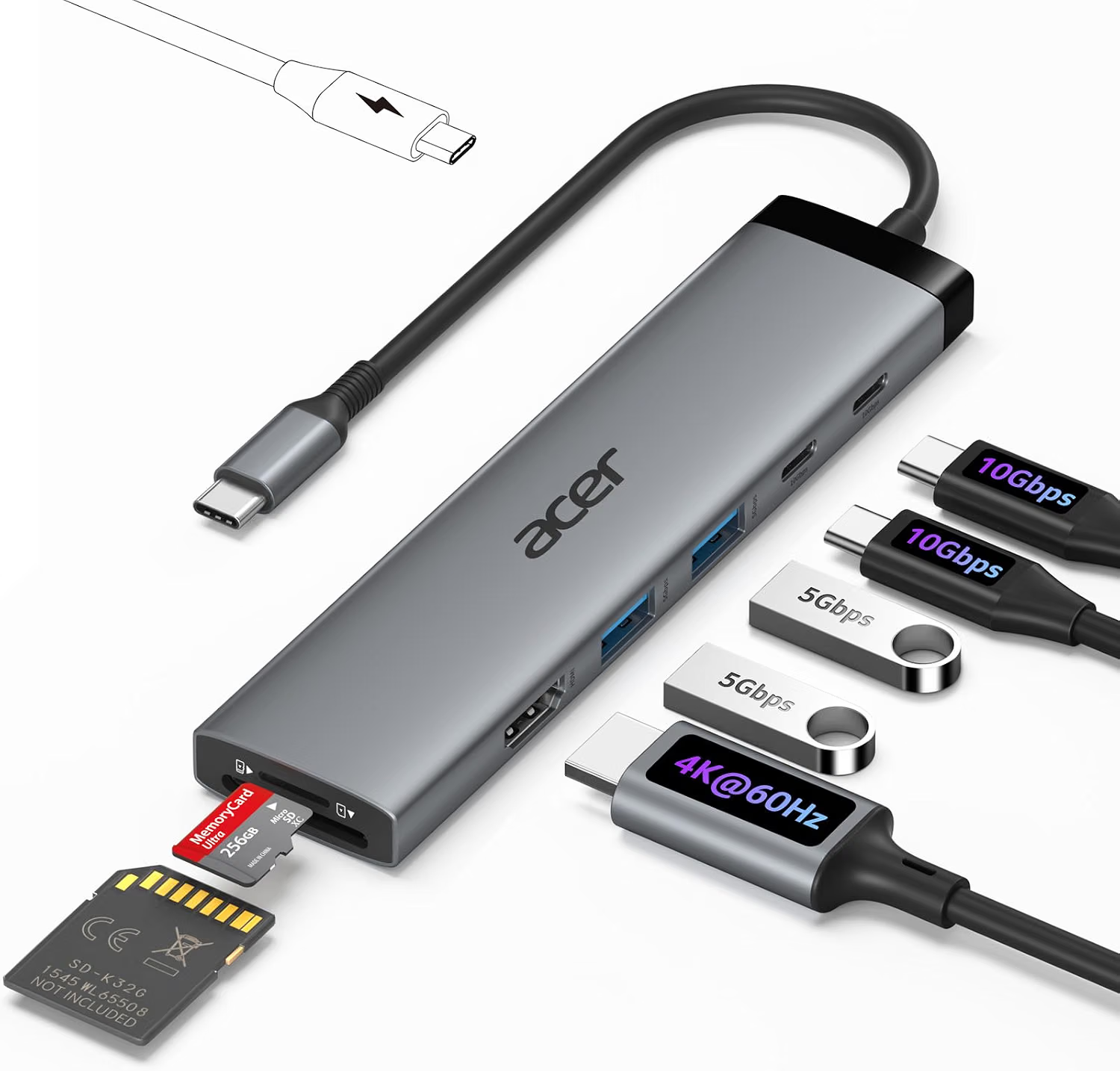
Modern laptops are increasingly designed around USB-C. The connector is compact, reversible, and capable of supporting several different functions depending on the computer and the port implementation. At the same time, many newer laptops provide fewer traditional connections than older computers did.
That change can be convenient for manufacturers and users who prefer thinner devices, but it can create a practical problem at the desk.
A laptop may need to connect to an external monitor, USB storage, a keyboard, mouse, camera, memory card, or other accessory. If the computer has only a small number of physical ports, connecting everything directly may not be possible.
A USB-C hub provides one solution.
The Acer 8-in-1 USB-C Hub is designed to expand the connectivity of a compatible laptop or Mac through a USB-C connection. Its configuration is aimed at combining several everyday interfaces in one compact accessory, including high-speed USB connectivity and HDMI video output with support for up to 4K at 60Hz when the host system and connected equipment support the required standards.
The advertised 10Gbps USB capability is also relevant for users who regularly move files or connect higher-bandwidth peripherals.
A hub such as this can serve several roles. It can become a small desktop docking point, a travel adapter, a way to connect older USB accessories to a newer laptop, or a convenient bridge between a computer and an external display.
However, USB-C hubs are not universal in the sense that every USB-C port supports the same functions. The computer, cable, operating system, display, and connected accessories all contribute to the final experience.
This guide explores the Acer 8-in-1 USB-C Hub, its practical applications, important technical considerations, and how it compares with other general categories of USB-C connectivity accessories.
What Is an 8-in-1 USB-C Hub?
A USB-C hub takes one compatible USB-C connection on a host computer and expands it into several additional ports.
The purpose is straightforward: instead of carrying multiple single-purpose adapters, a user can connect several accessories through one centralized device.
An 8-in-1 hub can be particularly useful with laptops that have moved away from traditional USB-A, HDMI, and other full-size ports.
For example, a modern laptop might provide two USB-C ports but still need to work with:
- An HDMI monitor
- A USB-A keyboard
- A USB-A mouse
- External storage
- A memory card
- Another USB accessory
A multi-port hub can provide a central connection point for those devices.
The actual eight interfaces included in a specific hub should always be confirmed against the manufacturer’s current specifications. The Acer model discussed here is marketed around a combination of USB-C connectivity, HDMI display output, and additional peripheral interfaces.
Key Features
10Gbps USB Connectivity
One of the notable specifications of this Acer hub is support for USB data speeds up to 10Gbps on compatible connections.
A 10Gbps theoretical interface can provide considerably more bandwidth than older USB standards.
This can matter when transferring large files between a laptop and an external SSD, working with sizable media files, or using higher-bandwidth USB peripherals.
However, a “10Gbps” rating describes the maximum supported link speed under the appropriate conditions. It does not mean every connected device will transfer data at exactly 10Gbps.
Actual performance depends on the USB port being used, the connected peripheral, cable quality, storage technology, operating system, and the host computer.
For example, a traditional USB flash drive may operate much more slowly than a modern external SSD even when both are connected through the same hub.
USB-C Host Connection
The hub connects to a compatible computer through USB-C.
USB-C is valuable because it can carry different kinds of signals through the same physical connector. Depending on the host device, it can support data transfer, video output, and power-related functions.
The important word is “depending.”
Not every USB-C port provides the same capabilities. A laptop’s USB-C port may support data only, while another port on the same computer may also support external displays.
This distinction becomes particularly important when using the hub’s HDMI output.
HDMI Output
The Acer hub is designed to provide HDMI connectivity for an external display.
This allows a compatible laptop to connect to a monitor, television, projector, or other HDMI-equipped display.
For office productivity, an external monitor can provide additional workspace. A user can keep one application on the laptop screen and another on the larger display.
For presentations, HDMI can also provide a convenient connection to compatible projectors and conference-room displays.
4K at 60Hz
The product is marketed with 4K HDMI support at up to 60Hz.
4K describes a high-resolution display format, while 60Hz refers to the refresh rate.
A 60Hz display refreshes the image 60 times per second and is widely used for everyday computer work, streaming, and general productivity.
However, achieving 4K at 60Hz requires more than the hub itself.
The laptop must support the necessary video-output mode through its USB-C connection. The display must support the desired resolution and refresh rate. The HDMI cable must also be appropriate for the intended signal.
If any component has a lower limitation, the final display configuration may operate at a lower resolution or refresh rate.
Multiple Connectivity Options
The main advantage of an 8-in-1 hub is the combination of several ports in one accessory.
This can reduce the need to carry individual dongles for different connections.
For example, a user could connect a display through HDMI while also connecting USB peripherals and storage devices through the hub.
This makes the accessory useful for both stationary workstations and mobile setups.
Compact Form Factor
USB-C hubs are generally designed with portability in mind.
Instead of carrying a full-size docking station, a user can place a small hub in a laptop bag or backpack.
This can be useful for students, remote workers, business travelers, and anyone who frequently moves between different workspaces.
A compact hub can also remain connected to a desk setup without taking up much room.
How It Can Be Used
Connecting a Laptop to an External Monitor
One of the simplest uses is adding a larger display to a laptop.
A laptop can connect to an HDMI monitor through the hub.
Once the display is recognized, the operating system can generally be configured to mirror the laptop screen or extend the desktop, depending on the computer and operating system.
Extended-display mode is particularly useful for productivity.
For example, a document can remain open on one screen while a browser or reference material is displayed on the other.
This reduces the need to repeatedly switch between windows.
Building a Small Home Office
A USB-C hub can become the center of a compact home office setup.
A laptop can connect to the hub while the hub handles the external monitor and USB peripherals.
A keyboard and mouse can remain connected to the hub, while the laptop maintains a relatively clean connection with only one USB-C cable.
When the user needs to leave, disconnecting the laptop from the hub can make the computer mobile again.
This type of setup is especially convenient for people who use one laptop for both home and mobile work.
Connecting USB-A Accessories
Many people still own USB-A peripherals.
Keyboards, mice, flash drives, webcams, external storage devices, printers, and other accessories can use the older rectangular USB connector.
A USB-C hub can provide a bridge between these accessories and a newer computer.
This means users do not necessarily need to replace functional peripherals simply because their new laptop has fewer USB-A ports.
Using External Storage
External SSDs and other storage devices can be useful for backups, media libraries, project files, and transferring information between computers.
A high-speed USB connection can reduce transfer times when the storage device and host computer support the required speeds.
For example, someone editing large video files may benefit more from a fast external SSD than someone transferring small documents.
The hub’s advertised 10Gbps capability is relevant in such situations, but actual transfer speeds remain dependent on the complete hardware chain.
Connecting Memory Cards
Many compact USB-C hubs include memory-card interfaces as part of their multi-port design.
These can be useful for photographers, videographers, and users who regularly transfer files from removable storage.
A laptop without a built-in card reader can gain this functionality through a compatible hub.
The workflow is straightforward: insert the card into the appropriate reader, connect the hub to the computer, and access the card through the operating system.
Presentations
A USB-C hub with HDMI can be useful for presentations.
A presenter can connect a laptop to a conference-room display or projector through HDMI.
The hub can remain in the laptop bag and provide a familiar connection point when arriving at different meeting spaces.
Before an important presentation, it is sensible to test the laptop, hub, HDMI cable, and display together.
A projector may support only certain resolutions or refresh rates, and some organizational systems may have additional requirements.
Classroom and University Use
Students often encounter different types of technology throughout a school or university environment.
A classroom may provide HDMI, while another location might have different equipment.
A compact multi-port hub can provide flexibility when a laptop has limited built-in ports.
It can also allow students to connect USB accessories without carrying several separate adapters.
Travel
Travel is another practical application.
A person who works remotely may need to connect their laptop to different displays, USB accessories, and storage devices in hotels, coworking spaces, offices, or temporary workstations.
A compact hub can consolidate these connections.
Instead of carrying a dedicated HDMI adapter, USB adapter, and other individual accessories, several functions can be combined into one device.
Who It May Be Suitable For
Laptop Users With Limited Ports
This is perhaps the most obvious audience.
If a laptop provides primarily USB-C connections but the user’s accessories still rely on USB-A or HDMI, a hub can fill the physical connectivity gap.
Mac Users
MacBooks are frequently used with USB-C accessories, particularly when users need external monitors or traditional USB peripherals.
A compatible hub can help create a more flexible desk setup.
The exact Mac model should still be checked because external-display support can differ between generations.
Windows Laptop Users
Windows laptops from many manufacturers use USB-C for connectivity.
A compatible Acer hub can provide additional ports for external displays and peripherals.
Compatibility should be confirmed against the exact laptop model, particularly when video output is required.
Students
Students can use a USB-C hub to connect laptops to classroom displays, external storage, USB accessories, and other equipment.
The compact format also makes it easier to carry between locations.
Remote Workers
A remote worker can leave the hub connected to a home office monitor, keyboard, mouse, and other peripherals.
The laptop can then be connected or disconnected using a single USB-C connection.
Content Creators
Photographers, video editors, designers, and other creators often work with external storage and displays.
A multi-port hub can simplify access to those devices, although demanding workloads should be matched to the hub’s exact USB specifications.
Important Things to Consider
Verify USB-C Video Support
The most important compatibility check is the host computer’s USB-C port.
The hub’s HDMI output requires the laptop’s USB-C connection to support an appropriate video-output technology.
A USB-C port that supports data only may not provide a display signal.
The computer’s specifications should therefore be checked before assuming HDMI will work.
4K 60Hz Is a System-Level Capability
The hub can support the advertised HDMI mode, but the entire system must support it.
The laptop needs appropriate graphics and USB-C video capabilities. The monitor needs to accept the desired signal. The HDMI cable also needs to support the required bandwidth.
If one component is limited to a lower specification, the final result may be lower than 4K at 60Hz.
10Gbps Is a Maximum Interface Speed
A 10Gbps USB specification represents theoretical connection bandwidth.
Actual file transfers are affected by storage hardware, file size, filesystem behavior, computer performance, cable quality, and other connected devices.
For everyday peripherals such as keyboards and mice, bandwidth is rarely a significant concern.
For external SSDs and other high-speed equipment, it becomes more important.
USB-C Does Not Automatically Mean Charging
Some USB-C hubs support Power Delivery passthrough, while others focus primarily on data and display connectivity.
Users who need to charge a laptop through the hub should verify whether the specific model provides the necessary charging functionality.
A USB-C port on a hub should not automatically be interpreted as a laptop charging port.
Power Requirements
A hub draws power from its host connection unless it has another power source.
When several peripherals are connected, the available power and bandwidth are shared according to the hub’s design.
Bus-powered accessories such as portable drives can therefore behave differently depending on the number and type of connected devices.
External Monitor Limitations
The presence of one HDMI output does not mean that multiple external displays can be connected through every possible method.
Users who require two or three external monitors may need a docking station specifically designed for multi-display configurations.
They should also verify whether the computer itself supports the desired number of external displays.
Operating System Support
Windows and macOS can handle external devices differently.
Display management, storage access, USB permissions, and other functions can vary between operating systems.
It is therefore useful to confirm compatibility for the exact computer and operating-system version being used.
Cable Quality Matters
A hub cannot compensate for a cable that does not support the required signal or data rate.
For high-resolution HDMI output or high-speed USB transfers, the appropriate cable specifications should be considered.
A low-capability cable can become the limiting component.
Heat Management
USB hubs can become warm during normal operation, particularly when several connections are active.
The hub should be kept in an open area where heat can dissipate.
It should not be covered by clothing, papers, or other materials that restrict airflow.
Comparing General USB-C Accessory Categories
Single-Port Adapters
A single-port adapter is designed to solve one specific connectivity problem.
For example, a USB-C-to-HDMI adapter can be useful for someone who only needs an external display.
Its simplicity can make it easy to carry.
The limitation is that additional accessories require additional adapters.
Basic USB-C Hubs
Basic hubs usually provide a few USB-A ports and perhaps HDMI.
They can be appropriate for users with relatively simple connectivity requirements.
They tend to be compact and portable.
8-in-1 USB-C Hubs
An 8-in-1 hub provides a broader range of connectivity in one device.
This can be useful for users who need several types of peripherals but still want something smaller than a full desktop docking station.
The Acer 8-in-1 model is aimed at this middle category.
Multi-Display Docking Stations
Multi-display docking stations are designed for more demanding desktop configurations.
They may provide several display outputs, Ethernet, USB ports, charging, and other connections.
They are more appropriate for users who regularly operate a multi-monitor workstation.
A smaller 8-in-1 hub may be more suitable when portability and moderate connectivity are more important.
Thunderbolt and USB4 Docks
Thunderbolt and USB4 docks can provide high-bandwidth connectivity and advanced display capabilities on compatible computers.
However, their advantages are most relevant when the host device also supports the required technology.
A USB-C hub can be a simpler solution when the user’s needs are limited to standard USB peripherals, one external display, and other common connections.
Setting Up an External Monitor
A straightforward setup begins with checking the laptop.
Confirm that the USB-C port supports external video.
Next, connect the hub to the laptop.
Connect the HDMI cable from the hub to the monitor.
The display should then be selected through the computer’s display settings.
Users can typically choose between mirroring the laptop screen and extending the desktop, depending on the operating system.
If the monitor does not display an image, several possibilities should be checked:
- The laptop’s USB-C port may not support video.
- The monitor may be set to the wrong input.
- The HDMI cable may be incompatible or defective.
- The chosen resolution may not be supported.
- The operating system may need display settings adjusted.
- The hub may require a specific connection arrangement.
Checking each component individually can make troubleshooting easier.
Using a High-Speed External SSD
A fast external SSD can take advantage of a high-speed USB interface when all components support the appropriate standard.
For example, a user could keep large project files on an external SSD and connect it to the laptop through the hub.
The actual transfer rate will depend on the SSD, USB port, cable, host system, and other factors.
Users should also remember that copying a large number of small files can produce different results from transferring one large continuous file.
Therefore, the 10Gbps specification is best understood as an interface capability rather than a guaranteed file-transfer speed.
Managing a Portable Workstation
A useful way to think about a multi-port USB-C hub is as a portable workstation connector.
At home, the hub can remain connected to a monitor, keyboard, mouse, storage device, and other accessories.
When the laptop needs to travel, the user can disconnect one USB-C cable.
At another location, the same hub can provide access to the necessary accessories.
This arrangement can be especially useful for people who use a laptop as both a mobile computer and their primary desktop machine.
Cable Management Tips
A hub can reduce cable clutter, but it does not eliminate the need for organization.
At a permanent desk, the hub can be positioned near the rear edge of the workspace.
USB cables can then be routed toward the keyboard, mouse, storage devices, and other accessories.
The HDMI cable can travel toward the monitor, while the host USB-C cable connects to the laptop.
Keeping cables grouped by function can make troubleshooting easier.
It is also useful to avoid sharply bending the host cable or placing heavy objects on it.
Understanding USB-C Naming
USB-C can sometimes be confusing because the connector itself does not define the complete set of capabilities.
USB-C is the physical connector format.
USB 3.x, USB4, Thunderbolt, DisplayPort Alt Mode, and USB Power Delivery describe different aspects of the technology.
A laptop can therefore have a USB-C connector without supporting every feature that users associate with USB-C.
This is why checking the computer’s specifications is so important when choosing a hub.
Frequently Asked Questions
What is the Acer 8-in-1 USB-C Hub used for?
It is designed to expand the connectivity of compatible laptops and Mac computers by providing multiple ports through a USB-C connection. It can be used for displays, USB peripherals, storage, and other supported accessories.
Does it support 4K HDMI?
The product is marketed with HDMI support up to 4K at 60Hz. The host computer, HDMI cable, and display must also support the required configuration.
Does every laptop support 4K at 60Hz through this hub?
No. The laptop’s USB-C port must support the appropriate video-output capabilities, and the computer and display must support the desired resolution and refresh rate.
What does 10Gbps mean?
10Gbps refers to the maximum advertised USB data-transfer interface speed under compatible conditions. Actual transfer speeds depend on the host computer, hub port, cable, peripheral, and other factors.
Can it connect an external SSD?
A compatible external SSD can be connected through an appropriate USB port. Actual transfer performance depends on the SSD and the complete USB connection.
Can I connect a keyboard and mouse?
Compatible USB keyboards and mice can be connected through the hub’s available USB ports.
Can it connect an HDMI monitor?
Yes, the hub includes HDMI connectivity for compatible displays.
Can it connect a television?
A compatible HDMI-equipped television can potentially be used as an external display when the host computer supports the necessary video output.
Can it be used for presentations?
Yes. An HDMI connection can be used with compatible projectors or presentation displays.
Does USB-C guarantee HDMI output?
No. The host computer’s USB-C port must support an appropriate video-output mode.
Can I use it with a MacBook?
The product is designed for compatible Mac computers. Exact functionality depends on the Mac model and the capabilities of its USB-C ports.
Can it work with Windows laptops?
Compatible Windows laptops can use USB-C hubs, but the exact functions available depend on the computer’s USB-C implementation and operating system.
Does it charge a laptop?
Users should check the specific product specifications for Power Delivery support. A USB-C hub should not automatically be assumed to provide laptop charging simply because it connects through USB-C.
Can it support multiple external monitors?
The product includes HDMI connectivity, but users should verify the exact display configuration supported by the model. A single HDMI output does not automatically provide multiple independent external displays.
Why is my monitor showing a lower resolution?
The limitation could come from the laptop, hub, HDMI cable, monitor, or selected display settings. The entire connection chain must support the desired resolution and refresh rate.
Why isn’t my USB device working?
Possible causes include an incompatible port, insufficient power, driver or operating-system issues, cable problems, or limitations of the connected device.
Can I use several USB devices simultaneously?
Multiple compatible USB devices can be connected through the available ports. Their performance depends on the hub’s architecture and the shared connection to the host computer.
Is this type of hub suitable for travel?
A compact multi-port hub can be convenient for travel because it combines several common connections into one accessory.
Is an 8-in-1 hub the same as a docking station?
They serve similar purposes but are generally designed for different levels of connectivity. An 8-in-1 hub emphasizes compact expansion, while a full docking station may offer more ports, additional display outputs, networking, and other desktop-oriented features.
Does the hub improve my laptop’s processing performance?
No. A USB-C hub primarily expands physical connectivity. It does not upgrade the laptop’s processor, graphics processor, or internal storage.
Can it replace the laptop’s built-in ports?
It can supplement them by providing additional connections, but the hub still depends on the host computer’s capabilities.
What should I check before purchasing a USB-C hub?
Check the laptop’s USB-C specifications, required display resolution, number and type of USB devices, charging requirements, operating-system compatibility, and the types of ports you actually need.
Conclusion
The Acer 8-in-1 USB-C Hub is designed to address one of the most common connectivity challenges facing modern laptops: the growing gap between USB-C-equipped computers and the wide range of physical ports still required by everyday accessories.
Its combination of USB connectivity and HDMI display support can make it useful in several situations. A remote worker can use it as the connection point for a home office. A student can carry it between classrooms and study spaces. A traveler can use it to connect a laptop to displays and traditional USB accessories. A professional working with external storage can take advantage of a high-speed USB interface when the computer and peripheral support the required standard.
The advertised 4K at 60Hz HDMI capability can also be useful for compatible external displays, but it is important to remember that display performance depends on the entire system. The laptop’s USB-C port, graphics capabilities, monitor, HDMI cable, operating system, and hub all contribute to the final result.
The same principle applies to the 10Gbps USB specification. It represents a high-speed interface capability, but real-world transfer rates depend on the connected storage device, cable, host system, file types, and other factors.
For users who need several common connections without carrying a larger desktop docking station, an 8-in-1 USB-C hub can provide a practical middle ground between a simple single-purpose adapter and a more elaborate docking system.
The most important step before using one is to identify exactly what the computer supports. USB-C is a versatile connector, but its capabilities vary between devices and even between different ports on the same computer.
Once those specifications are understood, a multi-port hub can become a convenient part of a modern workstation, helping connect external displays, USB accessories, storage devices, and other peripherals through a centralized interface.
Leave a Reply