Modern laptops have become increasingly capable while often becoming more selective about the physical ports they include. A thin notebook may provide fast wireless connectivity, powerful processors, and high-resolution displays, yet still leave users looking for additional connections when they sit down at a desk.
This becomes especially noticeable in a home office or professional workstation. A laptop might need to connect to two or three external displays, a wired network, USB accessories, storage devices, and a charger. Carrying an individual adapter for every connection can quickly become inconvenient.
A USB-C docking station provides another approach. Instead of treating each peripheral as a separate connection problem, a docking station brings several interfaces together in one accessory. The laptop can connect through a single USB-C connection while the dock handles compatible external displays and peripherals.
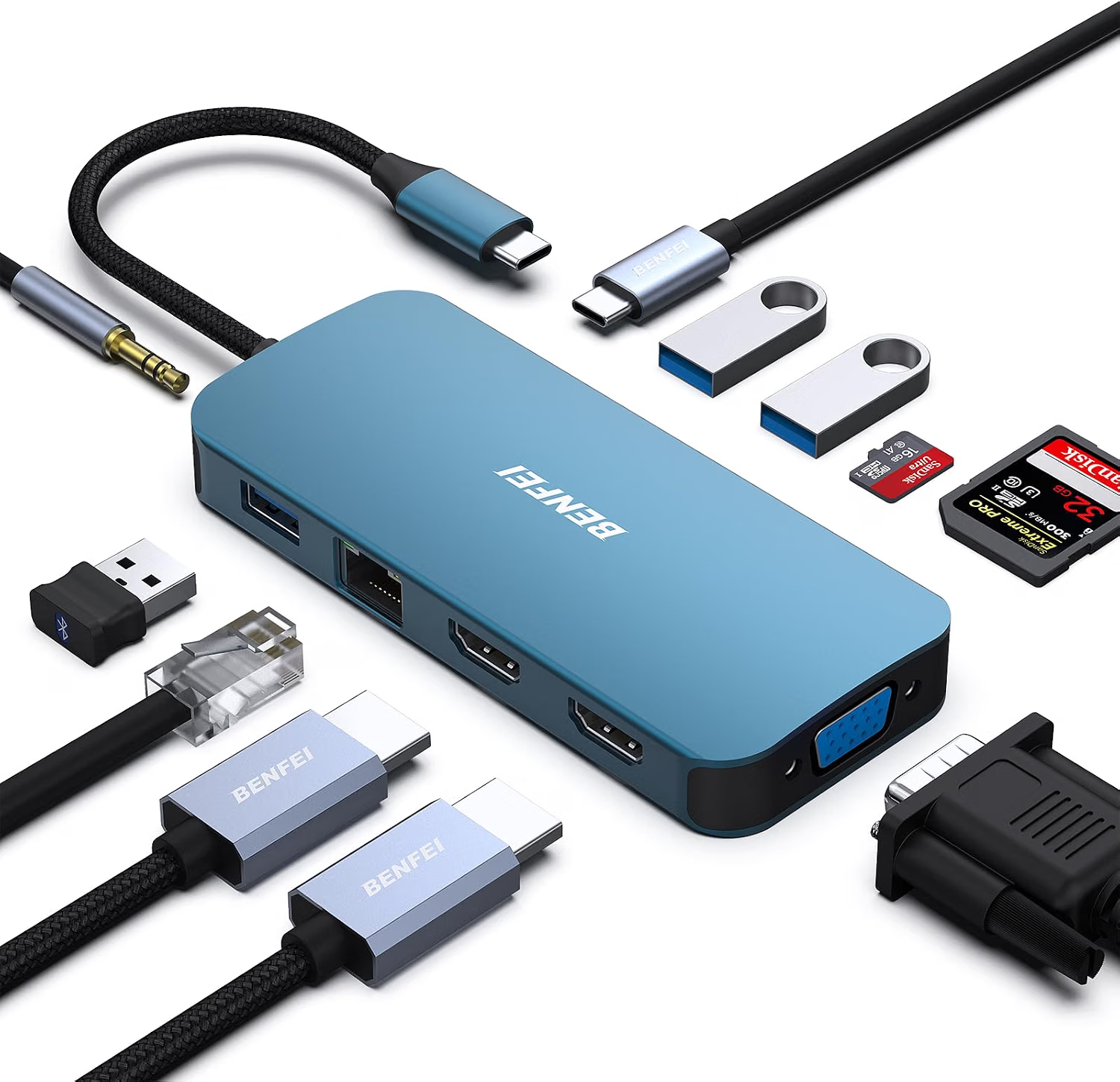
The BENFEI 11-in-1 USB C Hub Triple Display Docking Station is designed around this type of setup. Its configuration includes dual HDMI connections and VGA for display expansion, along with additional connectivity intended for peripherals, networking, and power-related functions.
A multi-display docking station can be useful for many different workflows, but it is important to understand what the hardware can and cannot do. Triple-display support depends heavily on the host computer, graphics capabilities, operating system, USB-C or Thunderbolt implementation, and the requirements of the connected monitors.
This guide explains the main functions of an 11-in-1 USB-C docking station, how a multi-display configuration can be organized, who may find this type of accessory useful, and which technical details should be checked before setting up a workstation.
What Is a USB-C Docking Station?
A USB-C docking station acts as a central connection point between a computer and multiple external devices.
Instead of plugging a monitor, keyboard, mouse, Ethernet cable, storage device, and other peripherals directly into the laptop, compatible accessories can connect to the dock.
The laptop then connects to the docking station through USB-C.
This arrangement can be particularly useful for computers with a limited number of physical ports. It can also simplify the process of moving between a permanent desk setup and mobile work.
A user might leave the monitor cables, Ethernet connection, keyboard, mouse, and other peripherals attached to the docking station. When it is time to leave, the laptop can be disconnected from the dock without requiring every accessory to be unplugged individually.
The result is a more centralized workstation connection.
Key Features
11-in-1 Connectivity
The main idea behind an 11-in-1 docking station is versatility.
Rather than focusing on one connection type, the dock combines multiple interfaces in a single device. This can reduce the number of adapters required in a workspace and provide access to ports that may not be available directly on a modern laptop.
The specific interfaces available on the BENFEI model include multiple display outputs as well as connectivity for common peripherals and networking.
For users building a workstation around a USB-C laptop, having several interfaces available from one location can make the overall setup easier to manage.
However, the number of physical ports should not be confused with the number of devices that can necessarily operate at maximum performance simultaneously. All connected devices ultimately communicate with the host computer through the docking connection.
Dual HDMI Outputs
Two HDMI outputs are among the most important features for users interested in multi-monitor setups.
HDMI is widely used for connecting computers to external monitors, televisions, projectors, and other compatible displays.
Having two HDMI outputs can allow a compatible computer to connect to two HDMI-equipped monitors without requiring separate video adapters.
A dual-monitor setup can be useful for productivity. For example, one display could contain email and communication applications while another is dedicated to spreadsheets, research, coding, design software, or other work.
The actual display resolution, refresh rate, and simultaneous-display capabilities depend on the host computer and the dock’s supported specifications.
VGA Output
The inclusion of VGA provides compatibility with display equipment that uses an older analog video connection.
Although HDMI and DisplayPort-style interfaces are common on newer displays, VGA can still be encountered in classrooms, conference rooms, offices, projectors, and older monitors.
This can make the VGA connection useful when working with legacy display equipment.
Users should keep in mind that VGA is an older analog standard and does not provide the same digital signal characteristics as HDMI. The quality and supported resolutions can therefore differ depending on the equipment involved.
Triple-Display Concept
The product is marketed as a triple-display docking station, which makes it relevant to users who want more than one external screen.
A three-screen workspace can offer substantially more visual space for certain workflows.
For example, a professional could use:
- One screen for communication
- One screen for the main application
- One screen for reference material
A developer might keep code on one monitor, documentation or browser windows on another, and testing or terminal tools on a third.
A content creator could use one screen for a project timeline, another for source material, and another for organizational tools.
The practical usefulness of multiple monitors depends on the host computer’s ability to drive them simultaneously. A dock cannot independently create unlimited graphics capability.
USB Peripheral Connectivity
An 11-in-1 docking station is also useful because external displays are only one part of a desktop setup.
Keyboards, mice, USB storage devices, webcams, microphones, card readers, and other accessories may all need physical connections.
The additional USB interfaces on a docking station can consolidate these accessories around one central point.
This can be especially convenient for laptops that provide only a small number of USB-C ports.
Wired Ethernet Connectivity
A docking station can also provide wired network connectivity where supported.
Ethernet can be useful in office environments, home workstations, and other situations where a wired connection is preferred.
For example, a laptop may normally rely on Wi-Fi when traveling but use Ethernet when connected to a desk.
A wired connection can also simplify workstation setups where network access is already provided through a physical Ethernet cable.
The actual network speed depends on the dock’s Ethernet specification, network equipment, cables, and internet or local-network service.
USB-C Power Delivery
Many modern docking stations also support charging through USB-C Power Delivery.
This allows a compatible laptop charger to connect through the dock while the laptop remains connected to external displays and peripherals.
The practical benefit is convenience. Instead of connecting a charger directly to the laptop every time the battery needs power, the charging connection can be incorporated into the desk’s docking arrangement.
The exact charging behavior depends on the dock’s Power Delivery capabilities, the charger, the USB-C cable, and the laptop.
A stated maximum wattage should be interpreted as the supported capability of the connection rather than a guarantee that every laptop will receive that amount.
How It Can Be Used
Creating a Home Office Docking Setup
A home office is one of the most common environments for a multi-port USB-C docking station.
Consider a desk with two monitors, a keyboard, mouse, Ethernet cable, external storage, and a laptop.
Without a docking station, the laptop may need several cables connected directly to it.
With a suitable dock, most of these peripherals can remain connected to the docking station.
The laptop then connects to the dock through its USB-C connection.
When work is finished, disconnecting the laptop from the dock can leave the rest of the workstation intact.
This approach can be particularly convenient for people who use the same laptop both at home and away from the office.
Building a Multi-Monitor Productivity Station
Multiple monitors can provide additional workspace for tasks involving several applications.
A simple two-screen arrangement can divide work into primary and secondary areas.
A third display can provide another dedicated area for reference information, communication, monitoring tools, or other applications.
However, more screens do not automatically mean greater productivity for every person or task. Some workflows benefit greatly from additional screen space, while others may not require it.
The most effective arrangement depends on the applications being used and how the user prefers to organize information.
Connecting Older Office Equipment
The VGA output can be useful when a workplace still relies on older projectors or monitors.
For example, a laptop with modern USB-C connectivity may need to connect to a conference-room projector with VGA.
Instead of carrying a separate USB-C-to-VGA adapter, a docking station with VGA can potentially handle that connection as part of the broader workstation setup.
The same principle applies to older office displays.
Connecting to a Projector
Presentations often require flexibility because conference rooms and classrooms can use different display hardware.
A USB-C docking station with HDMI and VGA outputs can provide multiple display connection options.
Before an important presentation, it is sensible to test the exact laptop, dock, cable, projector, and display resolution combination.
This can help identify compatibility problems before the presentation begins.
Using Wired Internet at a Desk
A laptop can remain connected to Wi-Fi while mobile, then use Ethernet through the docking station when placed at a workstation.
This creates a convenient transition between mobile and desk-based work.
The usefulness of Ethernet depends on the available network infrastructure. A dock cannot improve the underlying speed of an internet service beyond what the network connection supports.
Connecting USB Accessories
A docking station can serve as a central point for everyday peripherals.
A keyboard and mouse can remain connected to the dock. An external storage device can occupy another USB connection. A webcam or other accessory can use another available port.
The laptop can then be connected to all of these devices through the dock.
This is particularly useful when the computer itself has limited USB-A connectivity.
Connecting External Storage
External SSDs and hard drives can be used with compatible USB connections.
This can be useful for file backups, media libraries, project files, and general storage expansion.
Performance depends on the specific USB port, storage device, cable, and host connection.
Large file transfers can also compete for bandwidth with other connected USB devices, depending on the architecture of the docking station.
For demanding storage workflows, users should examine the detailed USB specifications rather than assuming that all ports provide identical performance.
Who It May Be Suitable For
Remote Workers
Remote workers often use laptops as both portable computers and desktop workstations.
A docking station can help bridge these two environments.
The laptop can remain lightweight and portable while the desk contains the monitor, keyboard, mouse, Ethernet connection, and other peripherals.
Professionals Using Multiple Displays
People who regularly work with several applications at once may find multi-monitor connectivity useful.
Examples include financial analysis, software development, design, project management, research, administration, and other computer-based work.
The additional screens can provide more room for simultaneously visible information.
Students
Students may use a laptop in several different locations.
At a dorm or home desk, a docking station can provide connections for an external monitor and USB peripherals. At school, the same accessory can potentially connect to presentation equipment or other compatible devices.
Its usefulness depends on the student’s specific computer and available equipment.
Office Workers
Traditional office environments can contain a mixture of modern and older equipment.
A laptop may use USB-C while the office monitor or projector still uses VGA or HDMI.
A multi-interface dock can provide a bridge between these different connection standards.
Creative Professionals
Photographers, video editors, graphic designers, and other creative professionals often work with large amounts of visual information.
Multiple displays can provide additional room for timelines, editing controls, reference images, file browsers, and the main project.
The docking station can help centralize these connections, although demanding creative applications should be evaluated against the host computer’s graphics capabilities.
Important Things to Consider
Triple-Display Support Depends on the Host Computer
This is one of the most important points to understand.
A docking station does not automatically guarantee that any laptop can drive three external monitors.
The computer’s USB-C implementation, graphics architecture, operating system, and supported display technologies all matter.
Some systems have specific limitations on the number of external displays they can support.
Before planning a triple-monitor workstation, check the exact laptop model and manufacturer documentation.
USB-C Ports Are Not All the Same
USB-C is a connector standard, not a guarantee of identical capabilities.
One USB-C port may support data and charging but not external video. Another may support video output through DisplayPort Alt Mode. Some computers also provide Thunderbolt or USB4 capabilities.
This distinction is critical when using a docking station.
If the host port does not support the necessary display functionality, connecting a monitor to the dock may not produce an image.
HDMI and VGA Have Different Characteristics
HDMI is a digital video connection, while VGA is an older analog standard.
A setup using HDMI can generally provide different display characteristics from a VGA connection.
When combining several displays, the final configuration may be constrained by the capabilities of the individual outputs and the host computer.
Users who require specific resolutions or refresh rates should verify the supported modes for the exact configuration.
Power Delivery Requires a Compatible Charger
The docking station may support USB-C Power Delivery, but the charger still matters.
If a laptop requires substantial charging power, the connected charger should provide an appropriate level of power.
A lower-powered charger may still charge a device in some situations, but it may not meet the computer’s full power requirements.
The dock, charger, cable, and laptop should therefore be considered as one system.
Connected Devices Share Resources
One USB-C connection carries data between the computer and the docking station.
Multiple peripherals therefore operate through that shared connection.
For everyday devices such as keyboards and mice, this is generally straightforward. More demanding applications, such as simultaneous high-speed storage transfers and high-resolution displays, can place greater demands on the connection.
This is another reason to examine the dock’s technical specifications when planning a demanding workstation.
Operating System Compatibility
The behavior of external monitors and peripherals can vary between Windows, macOS, ChromeOS, and other operating systems.
Some operating systems impose specific limitations on external displays.
Users should verify compatibility for their exact computer rather than relying only on the fact that both devices use USB-C.
Monitor Arrangement Matters
Three displays can be arranged in many ways.
A user might place three monitors side by side, use one vertically, or position a primary display in the center with secondary screens on either side.
The physical arrangement should take viewing distance, desk width, monitor size, and ergonomics into account.
A technically functional multi-monitor setup may still be uncomfortable if the displays are positioned poorly.
Cable Management
A docking station can reduce the number of cables running directly to the laptop, but it does not eliminate cables.
A triple-monitor setup may require several display cables, along with USB, Ethernet, and power connections.
Routing those cables along the rear of the desk can make the workstation easier to maintain.
Labeling cables can also be helpful when several monitors use similar connectors.
Comparing General Docking Station Categories
Basic USB-C Hubs
Basic hubs typically provide a small number of common connections.
They can be useful for people who only need USB-A and HDMI expansion.
Their smaller size can make them attractive for travel.
However, they may not provide enough ports for a permanent workstation with several monitors and peripherals.
Multi-Port USB-C Hubs
Multi-port hubs offer more interfaces while generally remaining relatively compact.
They can be suitable for users who need a combination of display, USB, and charging connections without requiring a large desktop dock.
An 11-in-1 design fits into this broader category but provides a more extensive selection of connections than a simple travel adapter.
Multi-Display Docking Stations
Multi-display docks focus more heavily on desktop workstation connectivity.
They are designed for users who need multiple monitors alongside USB peripherals, networking, and power-related connections.
The BENFEI 11-in-1 configuration is intended for this type of environment, particularly where HDMI and VGA display connections are useful.
Full Desktop Docking Stations
Larger docking stations can offer even more connections, such as additional displays, Ethernet, audio, storage interfaces, and other specialized ports.
These products can be appropriate for complex permanent workstations.
The trade-off is usually size, portability, and the greater complexity of managing many connections.
A compact multi-port dock can make more sense for someone who wants a balance between workstation functionality and portability.
Planning a Three-Monitor Workspace
Before connecting three displays, it helps to plan the workstation rather than simply plugging everything in.
Start with the computer.
Determine how many external displays it supports and what video output technology its USB-C port uses.
Next, identify the monitors and their available inputs.
If two displays use HDMI and another uses VGA, the docking station’s output configuration may fit naturally into the setup. If the monitors use other connection types, additional adapters may be necessary.
Then consider resolution.
Three high-resolution displays can place considerably different demands on a system than three lower-resolution screens.
The operating system should also be configured to recognize and arrange the displays correctly.
Finally, think about physical placement. The central monitor can be positioned directly in front of the user, while secondary screens can be angled toward the viewing position.
Example: Productivity Desk
Imagine a professional using a laptop with three external displays.
The central monitor contains the primary application. The second display contains email, messaging, and calendar tools. The third display provides reference documents or monitoring information.
A keyboard and mouse remain connected to the dock. Ethernet provides the desk’s wired network connection, while the laptop receives power through the compatible Power Delivery setup.
When the user needs to leave, the laptop can be disconnected from the docking station while the desk remains ready for the next session.
This illustrates one of the main advantages of docking stations: they turn a collection of individual peripherals into a more centralized workstation.
Example: Presentation Environment
Consider a laptop being used in an office or classroom where different display equipment may be available.
The HDMI outputs can support compatible modern displays, while VGA can provide an option for older equipment.
The user can prepare the laptop at their desk and then connect the appropriate display cable when arriving at the presentation location.
Testing beforehand remains important because display resolution, adapters, operating-system settings, and projector compatibility can affect the final result.
Example: Hybrid Work Setup
Hybrid workers often switch between a home office and a workplace.
A docking station can remain connected to the desk peripherals.
At home, that might include two or three monitors, Ethernet, keyboard, mouse, and storage.
At another location, the same laptop can be used independently.
When returning to the desk, reconnecting the laptop to the dock restores the workstation connections.
This type of arrangement can reduce the number of individual connections that need to be managed every day.
Frequently Asked Questions
What is an 11-in-1 USB-C docking station?
It is a multi-port accessory that expands a compatible USB-C connection into multiple interfaces for displays, USB peripherals, networking, charging, and other compatible devices.
How many HDMI ports does this BENFEI docking station have?
The product configuration includes two HDMI outputs.
Does it include VGA?
Yes. VGA is included as one of the display-output options.
Can it connect three monitors?
The product is designed around triple-display connectivity, but actual three-monitor operation depends on the host computer, USB-C capabilities, operating system, monitor configuration, and supported display modes.
Can any USB-C laptop use three monitors with this dock?
No. USB-C ports can have different capabilities, and some computers have their own limitations regarding the number of external displays they can support.
Why is my external monitor not displaying an image?
Possible causes include an incompatible USB-C port, unsupported display configuration, incorrect input selection on the monitor, cable problems, operating-system settings, or limitations of the host computer.
Can the docking station work with a MacBook?
Compatibility depends on the specific MacBook model and the capabilities of its USB-C or Thunderbolt ports. Users should verify the external-display limitations of their exact MacBook before planning a multi-monitor setup.
Can it be used with a Windows laptop?
It can be used with compatible Windows laptops, provided the computer supports the necessary USB-C functionality.
Does USB-C mean that video output is guaranteed?
No. USB-C describes the physical connector. Video output requires appropriate support from the host device and its USB-C implementation.
Can I connect a projector?
A compatible projector can potentially be connected through HDMI or VGA, depending on the projector’s available input.
Is VGA still useful?
VGA remains useful for compatibility with some older monitors, projectors, and office equipment, even though newer digital interfaces are more common.
Can the dock provide wired internet?
The product configuration includes Ethernet connectivity. Actual network performance depends on the dock’s network specification and the connected network equipment.
Can I charge my laptop through the dock?
The docking station is designed to support USB-C Power Delivery. Charging depends on using a compatible charger and cable and on the laptop’s own charging requirements.
Does a 100W-class charging capability mean every laptop charges at that level?
No. Actual charging power depends on the charger, dock, cable, and laptop. The computer may request or accept less power than the maximum supported by the docking connection.
Can I connect external hard drives?
Compatible USB storage devices can be connected through the available USB ports. Transfer performance depends on the port, storage device, cable, and host connection.
Will several USB devices work simultaneously?
Multiple compatible USB devices can be connected, but they share resources through the docking station’s connection to the host computer.
Is a docking station useful for remote work?
It can be useful for remote workers who want to connect a laptop to a permanent desk setup containing monitors, USB accessories, networking, and other peripherals.
Is an 11-in-1 dock suitable for travel?
It can be useful for travel when multiple connection types are needed, although a smaller hub may be more convenient for people who only need basic USB and display connections.
Does a docking station replace a computer’s graphics card?
No. The computer remains responsible for graphics processing and display capabilities. A dock primarily provides physical connectivity and, depending on its technology, may use different mechanisms for delivering display signals.
Should I check my laptop specifications before using the dock?
Yes. Checking USB-C capabilities, supported external displays, operating-system compatibility, charging requirements, and available video-output technologies can prevent many compatibility problems.
Conclusion
The BENFEI 11-in-1 USB C Hub Triple Display Docking Station is designed for users who want to consolidate several workstation connections around a single USB-C interface.
Its combination of dual HDMI outputs and VGA makes it particularly relevant to multi-display environments where both newer and older display equipment may be encountered. Additional connectivity for USB peripherals, networking, and USB-C Power Delivery can further support a desktop workstation built around a modern laptop.
The most important consideration is compatibility.
A docking station can provide the physical connections, but the host computer determines many of the practical limits. USB-C ports vary in their capabilities, operating systems handle external displays differently, and computers have their own restrictions on the number and type of monitors they can support.
For someone planning a multi-monitor workstation, checking the exact laptop specifications before purchasing or configuring the dock is therefore essential. The monitors, cables, charger, and docking station should also be considered together rather than as completely independent components.
When the hardware is compatible, a multi-port docking station can simplify the relationship between a portable laptop and a permanent workstation. Monitors, keyboards, mice, Ethernet, storage devices, and other accessories can remain organized around the dock, allowing the computer to move between locations with fewer cables to manage.
For home offices, hybrid workstations, professional desks, classrooms, and presentation environments, this type of centralized connectivity can provide a practical way to work with a wider range of peripherals and displays.
Leave a Reply